

Create Work Order
After you have successfully signed in, you can create a work order by clicking on the “Create Work Order” tile.
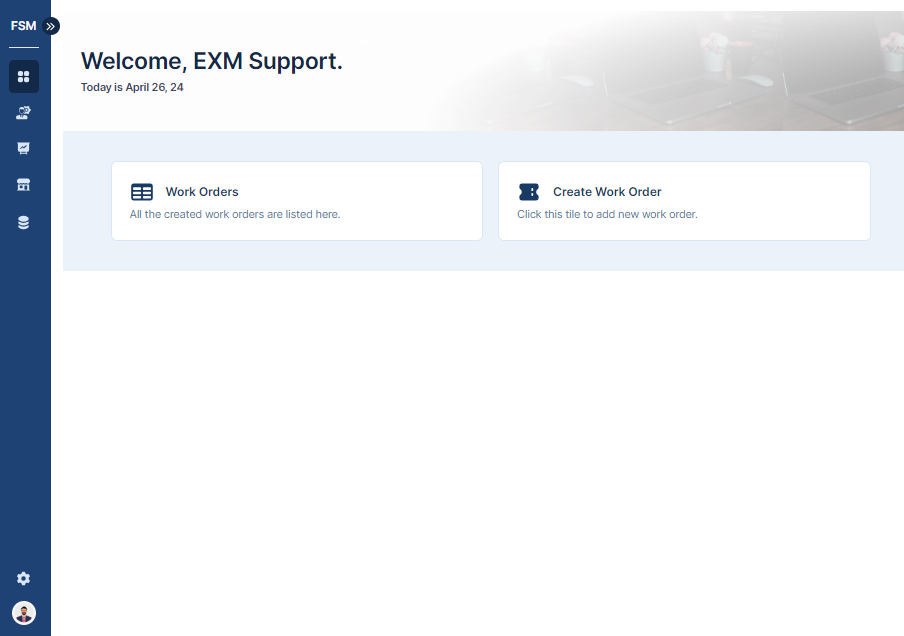
The form shown below will appear on the screen, allowing the user to create a work order.
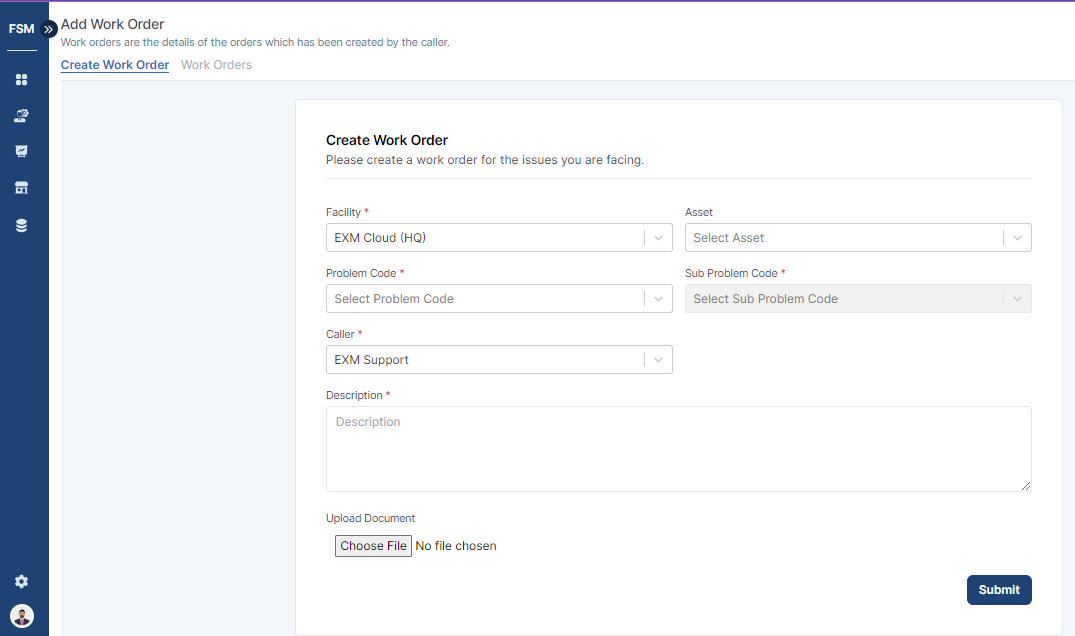
The user must complete the following fields on the form:
Field | Description |
|---|---|
Asset | Parts required to execute the work order. |
Caller | Person reporting the Work Order |
Description | Detailed explanation of the Work Order |
Facility | Location of the current user. |
Problem Code | Type of issue. |
Sub Problem Code | On Selecting Problem Code, select the Sub Problem Code, if applicable. |
Upload Document | Add files related to the Work Order |
The Facility, Problem code, Sub Problem Code, Caller and Description fields are mandatory however the user can upload document, or image file while creating the Work Order.
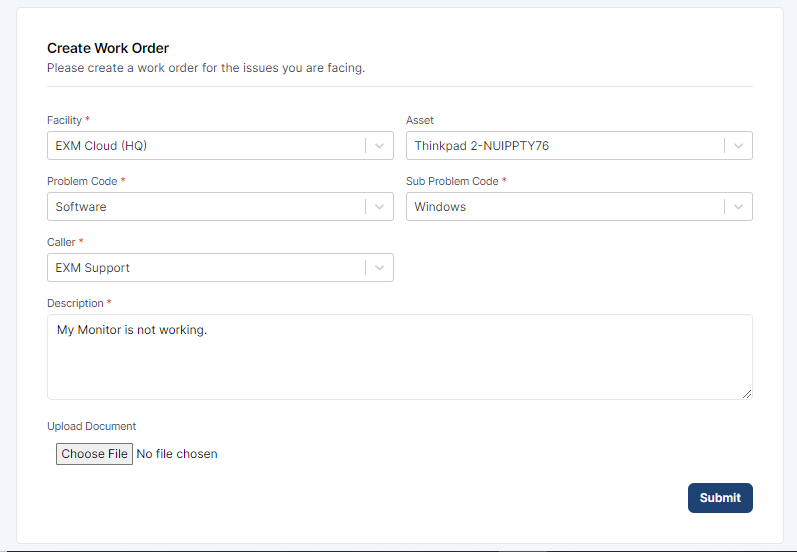
After the Create Work Order form is filled, click on the “Submit” button.
View Work Orders
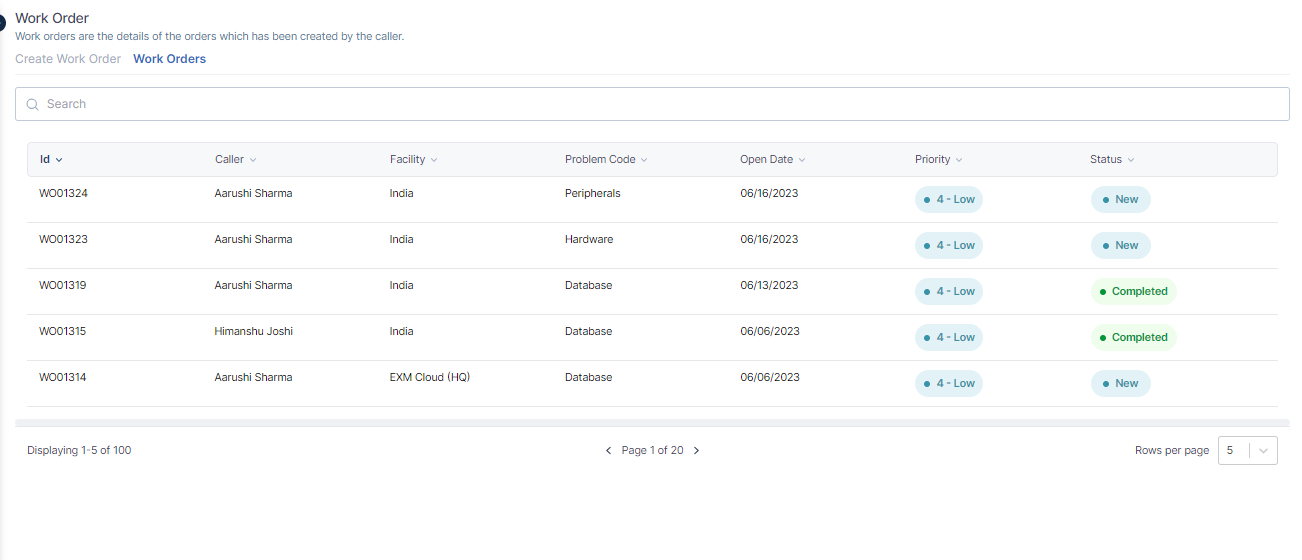
On successful submission, user will be redirected to the Work Order view or click on Create Work Order tile to view all the created work orders.
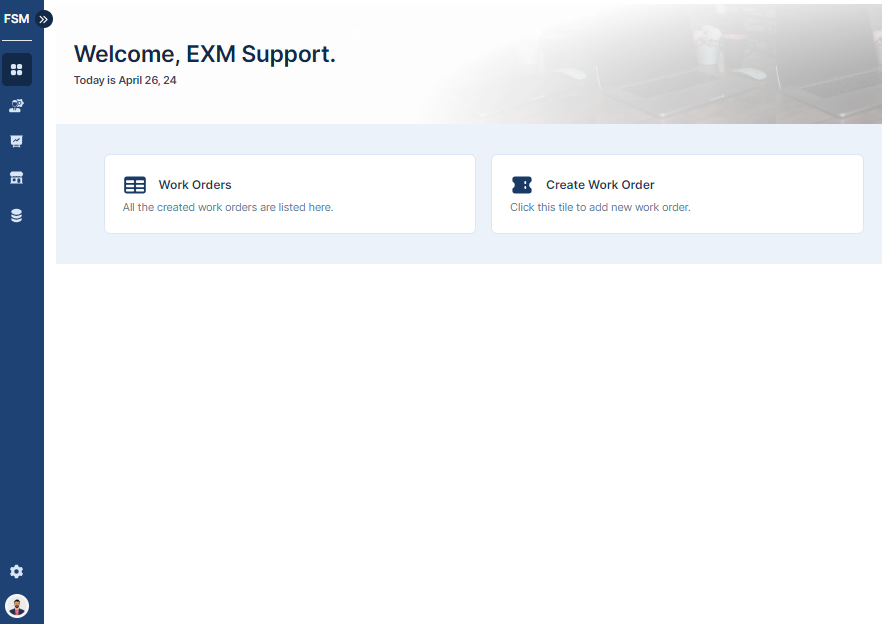
The list view will open and users can view the details for each work order.
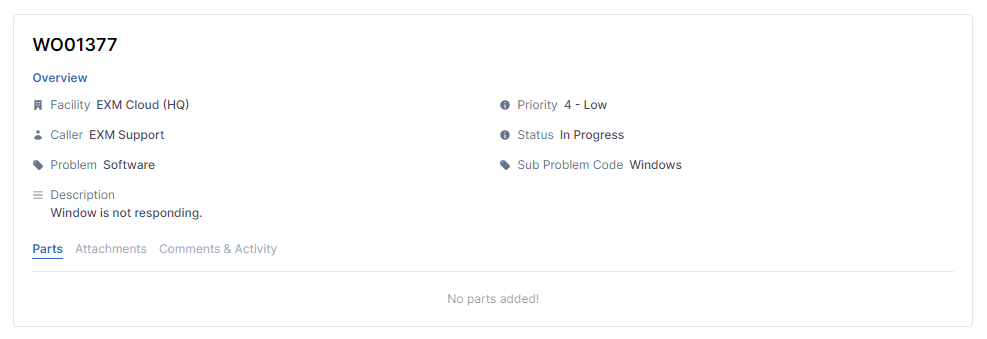
Clicking on the most recent work order will bring the user to a screen where they can view all of the work order's data.
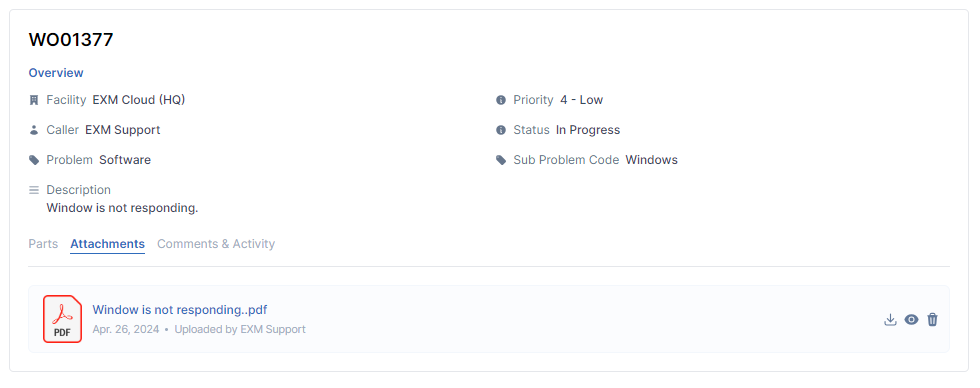
Attachment Section
In the Attachments section, users can access and view all documents or images that have been uploaded to provide additional information related to the work order.
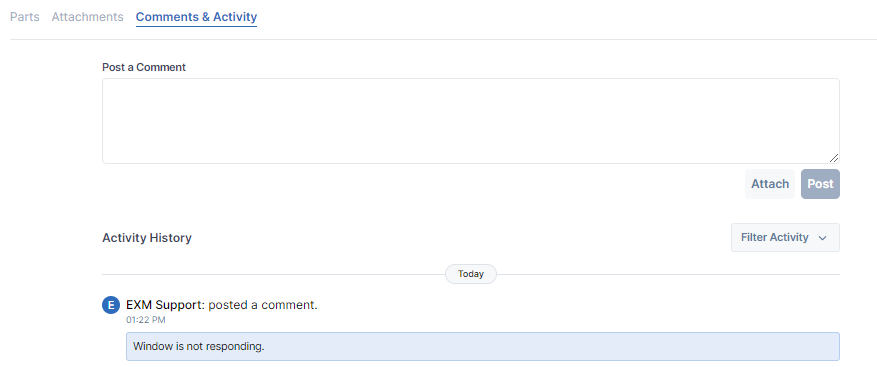
Comments & Activity
The Comments & Activity section in a work order management system serves as a hub where users can both contribute to and review a detailed log of comments and activities associated with a specific work order. It encompasses updates, notes, and discussions from various users engaged in the work order process, ensuring a comprehensive record of communication and actions. Additionally, users can supplement their contributions with attached files or documents to offer further context or information relevant to the work order. Users can quickly access all the emails that the system has sent out by visiting this section.
More Details
In a work order management system, the "More Details" dialog box provides additional information about a specific work order.
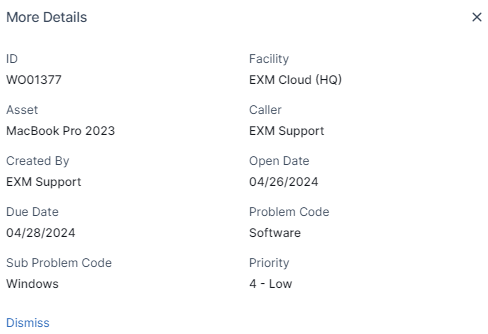
This information gives context about the work order, including its identification number, Facility, the caller who reported the issue, when it was created, the nature of the problem, and its priority level.
Re-Open
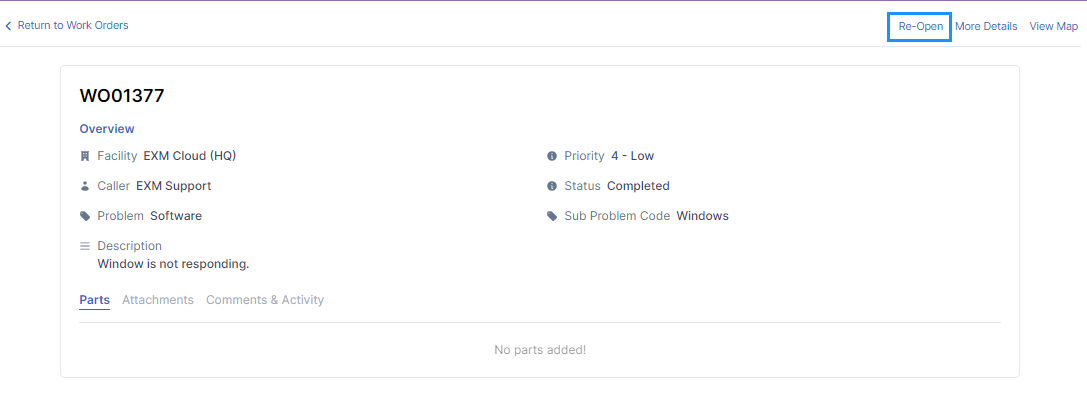
The Re-Open button on a work order allows users to reopen a previously completed work order for further action or review, typically when the issue was not fully resolved or requires additional attention.To reopen a work order, click on the "Reopen" button. This action triggers a dialog box prompting the user to provide a reason for reopening the work order. Once the reason is provided and saved, the work order status will change to "In Progress," indicating that it is active and being worked on again.
View Map
To View Map likely refers to a feature within a work order management system that allows users to access a map showing the location associated with the work order. This feature helps technicians or workers visualize the geographical area where the task needs to be performed, enabling efficient navigation and planning.