The Edge Portal offers a straightforward platform for both End Users and Managers to oversee cases. Accessible through email login, users gain immediate access to the dashboard homepage upon logging in.
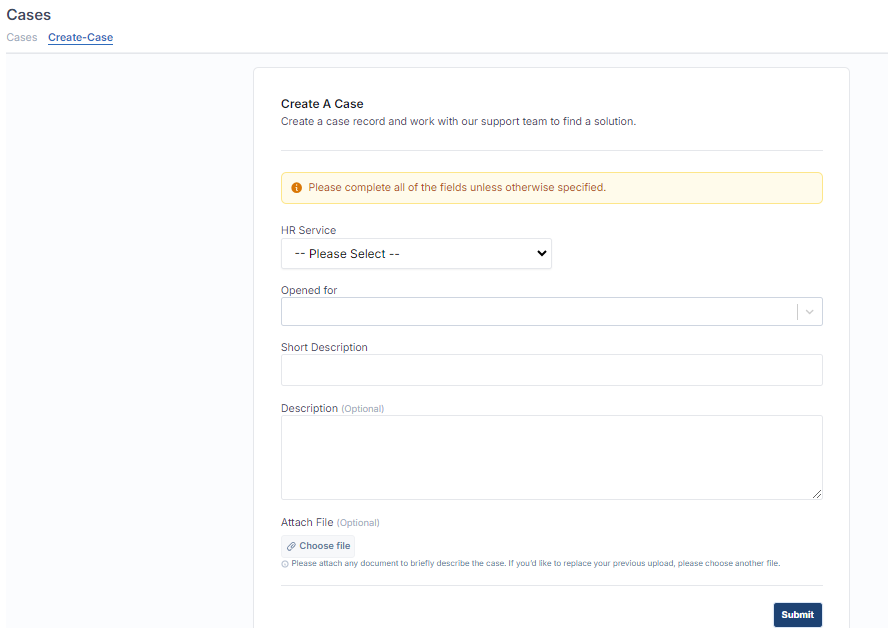
To begin a new case, navigate to the "HR Case" section on the left-hand side of the navigator. This action will lead you to the Case view screen, where you can initiate the creation of a new case by selecting the "Create Case" option.
Create A Case
To create a case, users must complete all mandatory fields within the form.
Field | Description |
|---|---|
HR Service | Categorize the type of HR issue, such as "Leave Request" or "Performance Evaluation." |
Opened for | Specify the individual or department for whom the case is created. |
Short Description | Provide a concise summary of the case. |
Description | Offer a detailed explanation of the case, including background information and specifics. |
Attach File | Optionally include supporting documents or evidence related to the case. |
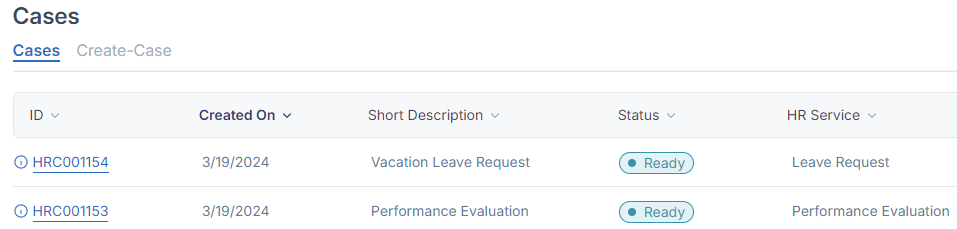
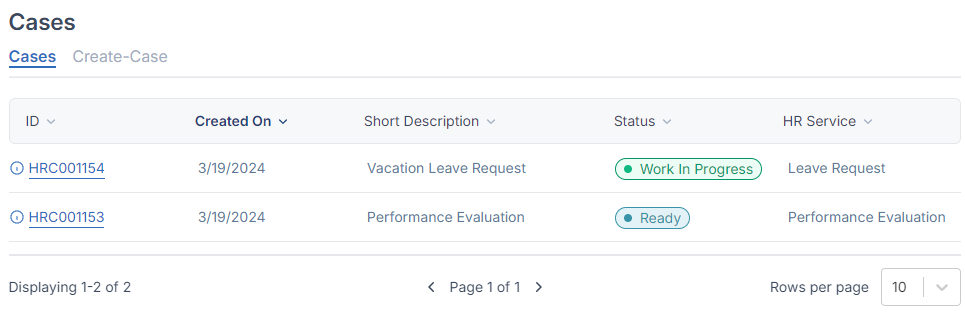
After filling out all the required fields in the case form, users can proceed by clicking on "Submit" to submit the case. Upon submission, they will be automatically redirected to the View Case screen, where they can access and review all the cases they have created.
View Case
On the View Case screen, users have the capability to review the cases they've created along with their corresponding details.
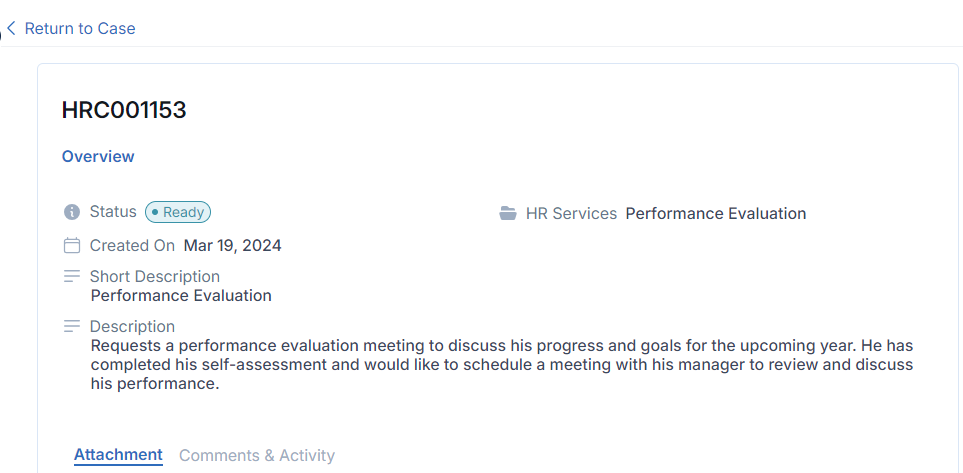
By clicking on a specific case, users can delve deeper into its particulars, accessing further information and insights related to that particular case.