
Create Hardware Asset
Click on "New" button on the top ribbon of the view by navigating to Asset Management > Hardware Asset.

Fill in all mandatory fields, marked with an Asterisk.
Click on button on the top ribbon.
Note:
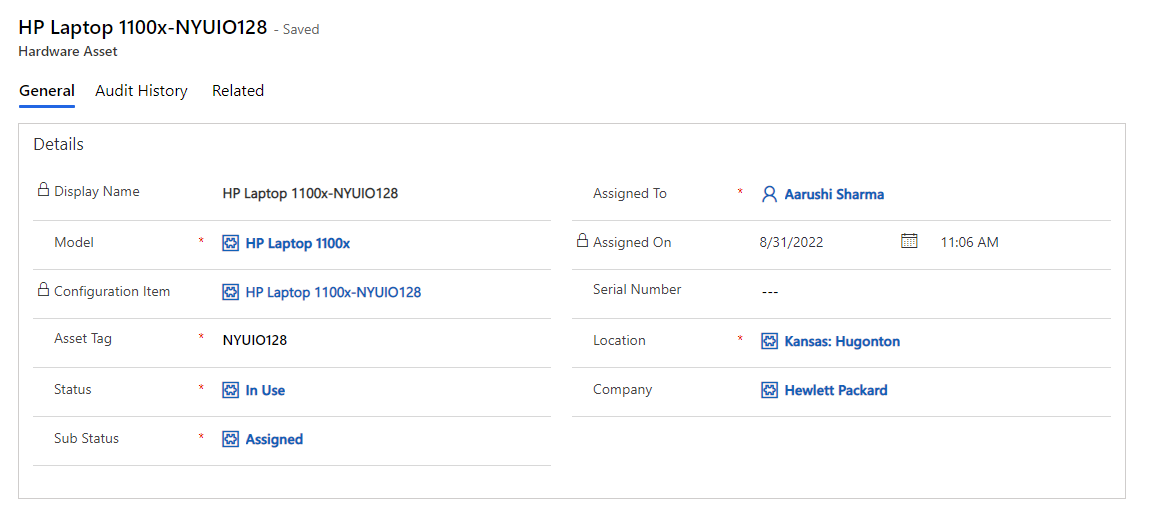
When new hardware asset is created the display name is automatically created by the concatenation of Model and Asset Tag.
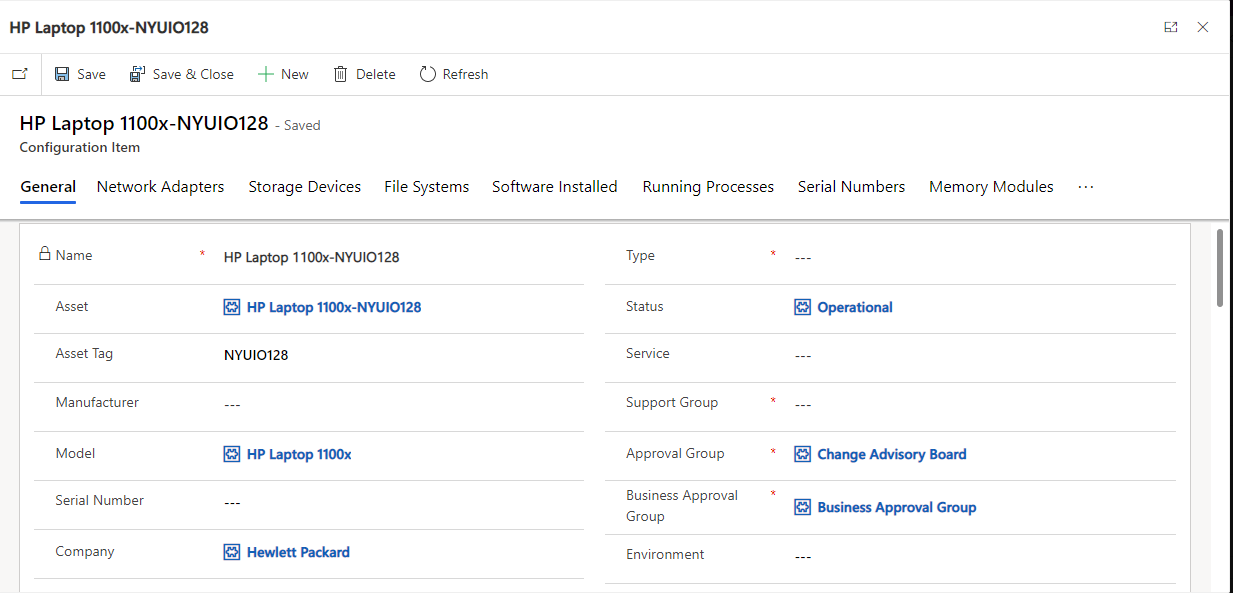
After the new hardware asset is created the system automatically creates a corresponding configuration item and auto populates the configuration item.
Form
Details Section
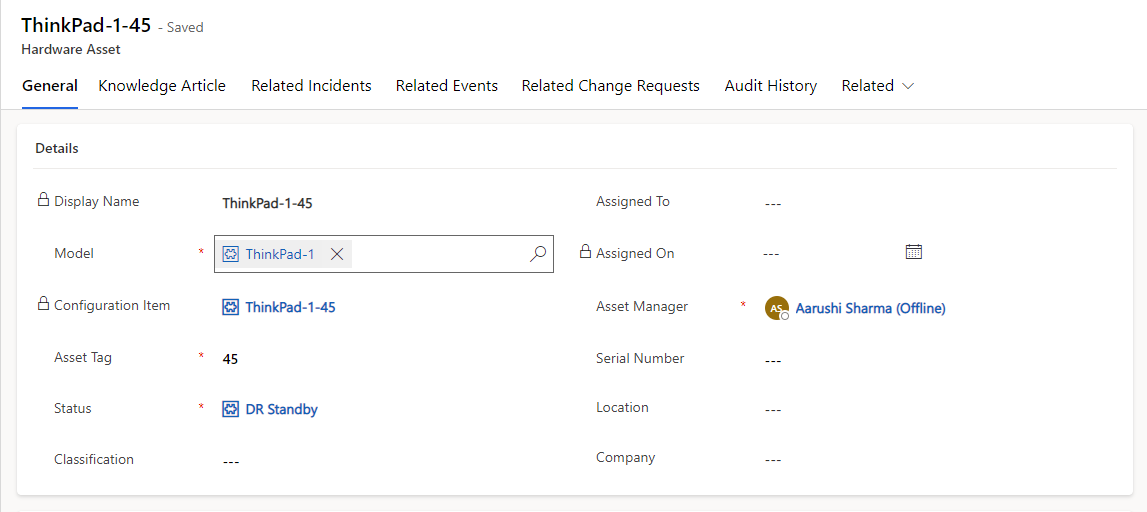
Field Name | Description |
|---|---|
Asset Tag | Unique Company Identifier |
Assigned On | Date Asset in use |
Assigned To | Establishes direct ownership |
Configuration Item | System generated linkage to CMDB |
Display Name | System generated name |
Location | Geographic place |
Model | Associated Vendor Naming convention |
Serial Number | Unique Vendor Identification |
Status | Current Condition |
Company | Company that manufactured |
Classification | Indicates the classification of the asset type. |
Asset Manager | Person within an organization who manages the detailed information about the Asset. |
Required Fields: Model, Status, Asset Tag
Required Fields Based on Business Rule: Sub Status, Location, Assigned To, Company
Financial Section
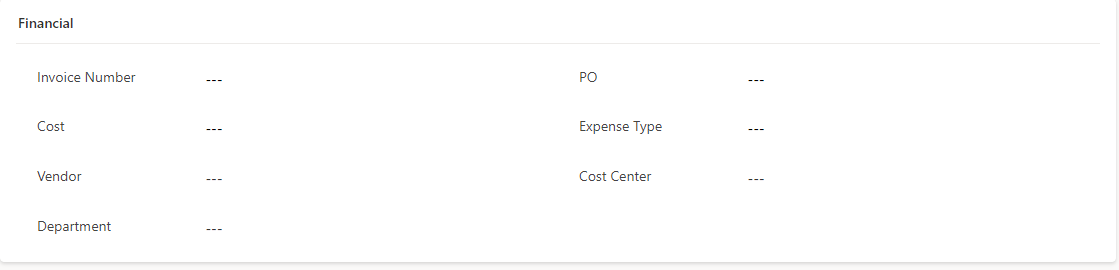
Field Name | Description |
|---|---|
Cost | Price of unit |
Expense Type | Accounting methods |
Invoice Number | Accounting system generated tracking identifier |
PO | Accounting system generated payment identifier |
Vendor | Company purchased from |
Department | Indicates the department within an organization who is responsible for Asset. |
Cost Center | Indicates the cost center within an organization to which cost of asset will be charged for accounting purposes. |
Disposal Section
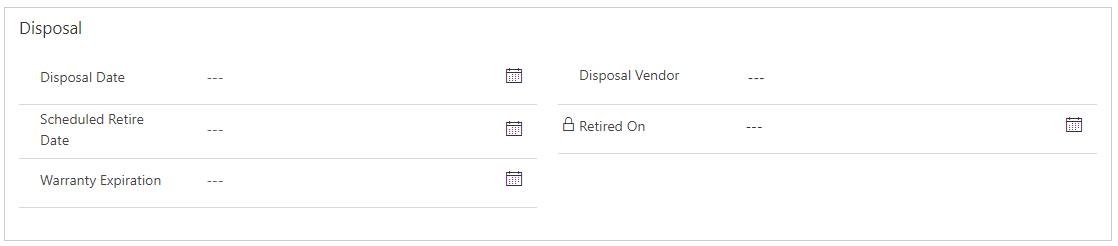
Field Name | Description |
|---|---|
Disposal Date | Last date of asset ownership |
Disposal Vendor | Entity that now has ownership |
Retired On | Last used date |
Scheduled Retired Date | Planned work stoppage |
Warranty Expiration | Date vendor supports terminates |
Audit Section

Field Name | Description |
|---|---|
Audit Number | Examiner tracking number |
Audited By | Examiner |
Last Audit Date | Previous examination |
Last Audit Status | Previous examination standing |
Required Fields: Last Audit Status, Audited By
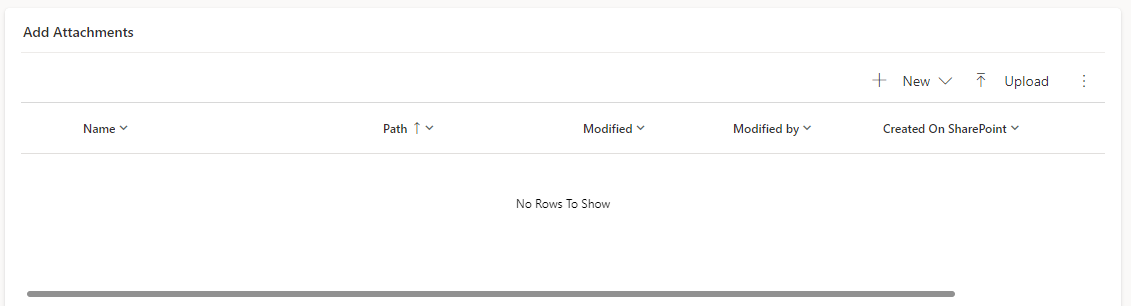
Add Attachments
Attach multiple attachments to the Hardware Asset.
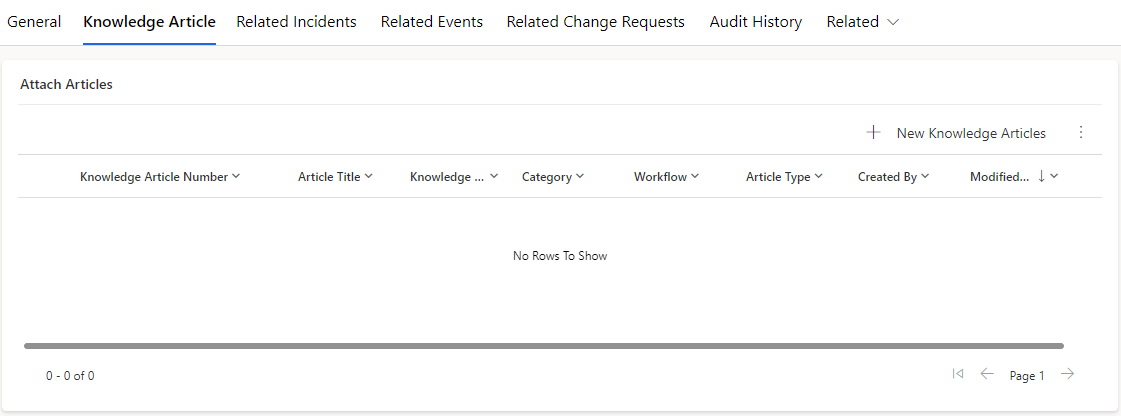
Knowledge Article Tab
Attach related Knowledge Articles to the Hardware Asset record by clicking on the  button.
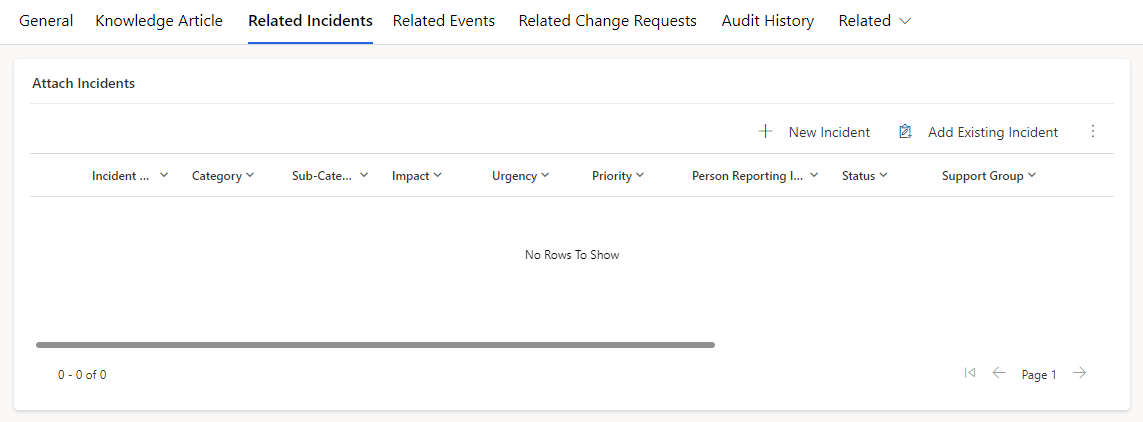
Related Incidents Tab
Attach related Incidents to the Hardware Asset record by clicking on the  button.
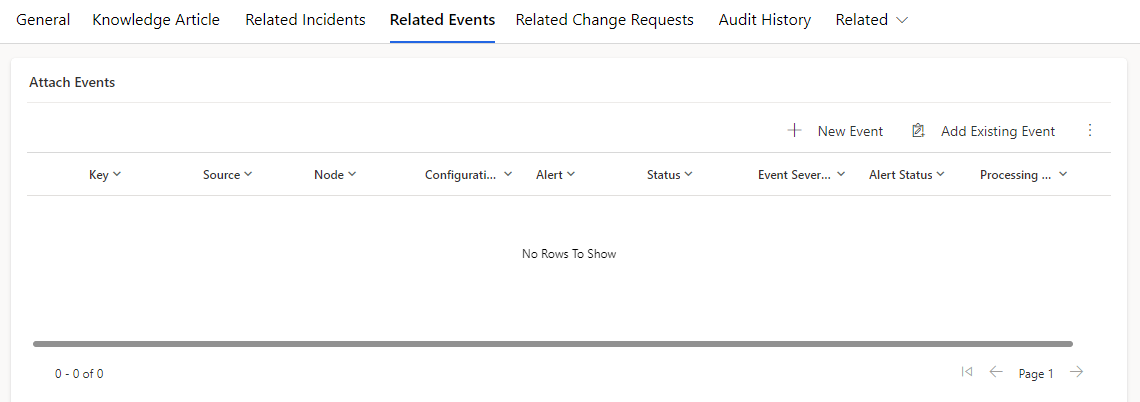
Related Events Tab
Attach related Events to the Hardware Asset record by clicking on the  button.
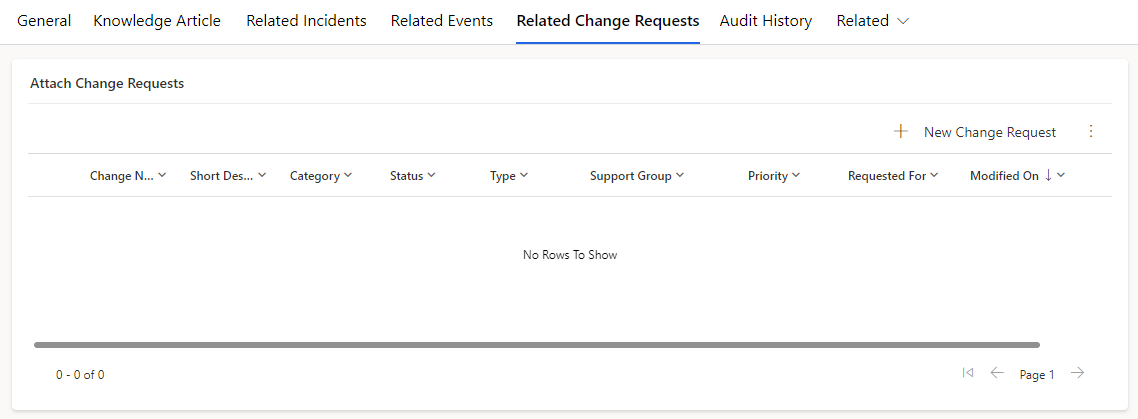
Related Change Requests Tab
Attach related Change Requests to the Hardware Asset record by clicking on the  button.
Audit History Tab
All the changes/updates made to the asset are captured in Audit History tab.
Archive Records
Migrate all the retired hardware asset records created between specified range of date from the Hardware Asset Entity and store it into Hardware Asset Archive Record entity. Users with ESM Super Admin role can archive the records.
Procedure
· Navigate to Asset Management > Hardware Assets from the left navigator.
· Click on the “Archive Records” button in top navigator.

· Popup will appear.
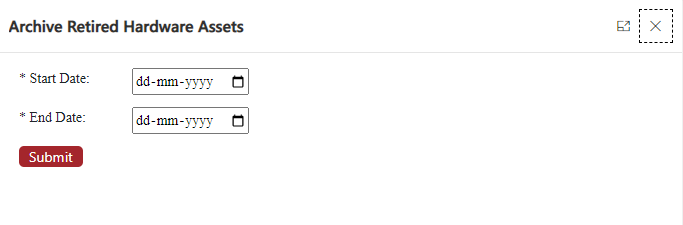
· Select the Start Date and End Date (Range of created on dates for which Hardware Assets need to be archived).
· Click on the Submit Button.
After clicking on submit button, reconfirmation popup will appear which displays that how many total records will be archived and will prompt to confirm for archival job to start.
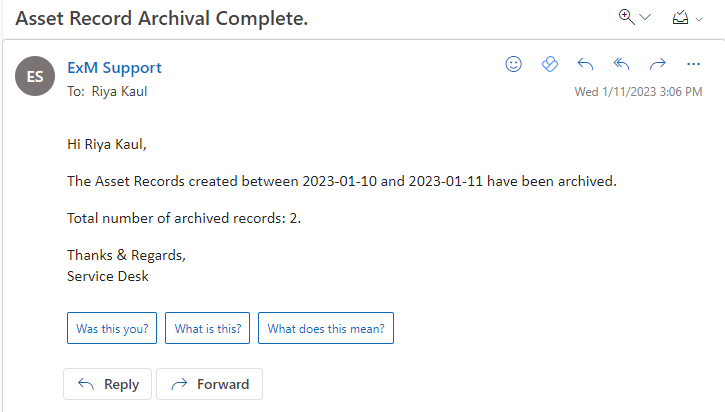
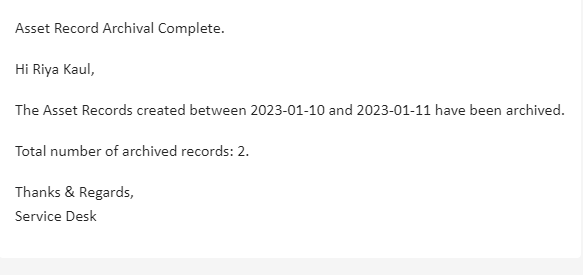
After reconfirmation by user, archival job will start and the user who initiated the job would receive an email and/or teams notification with the number of records archived.
Note: It will only archive those Hardware Asset records whose status are set as “Retired”.
