
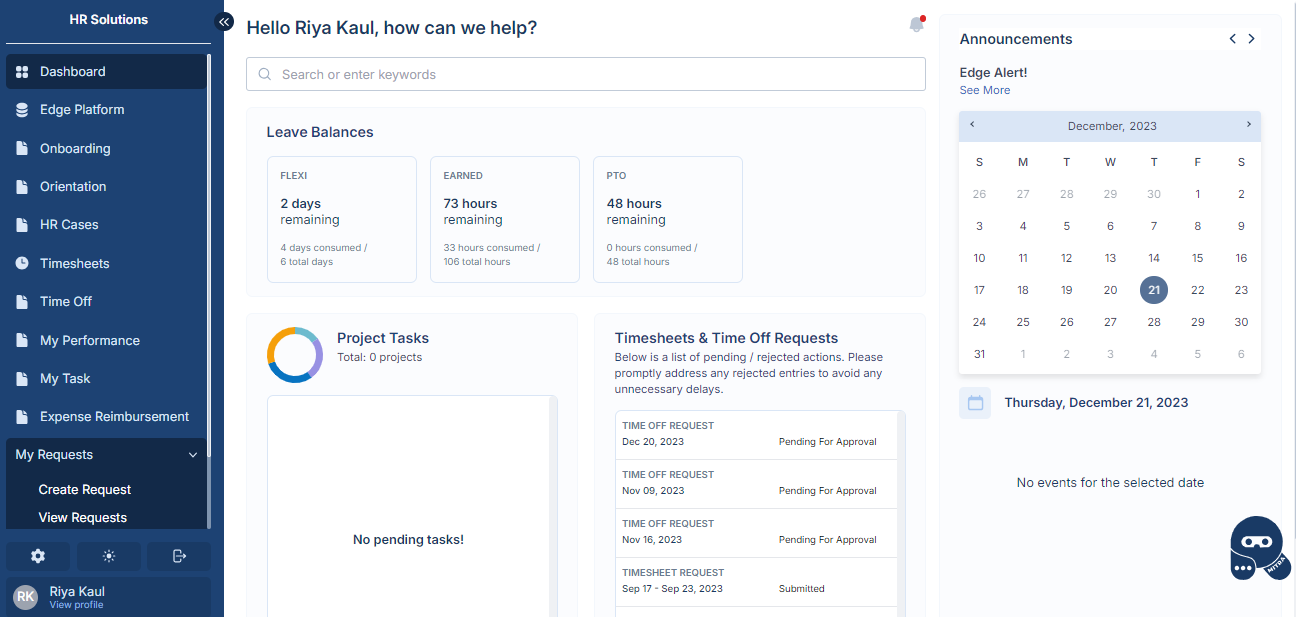
The Portal provides a simplistic platform for End Users and Managers to manage the Offboarding Process. Users are required to log into the portal using their E-Mail address. Once logged in, they shall be able to see the dashboard home page.
Create Resignation Request
In order to create a Resignation Request, navigate to My Requests > Create Request from the left navigator.
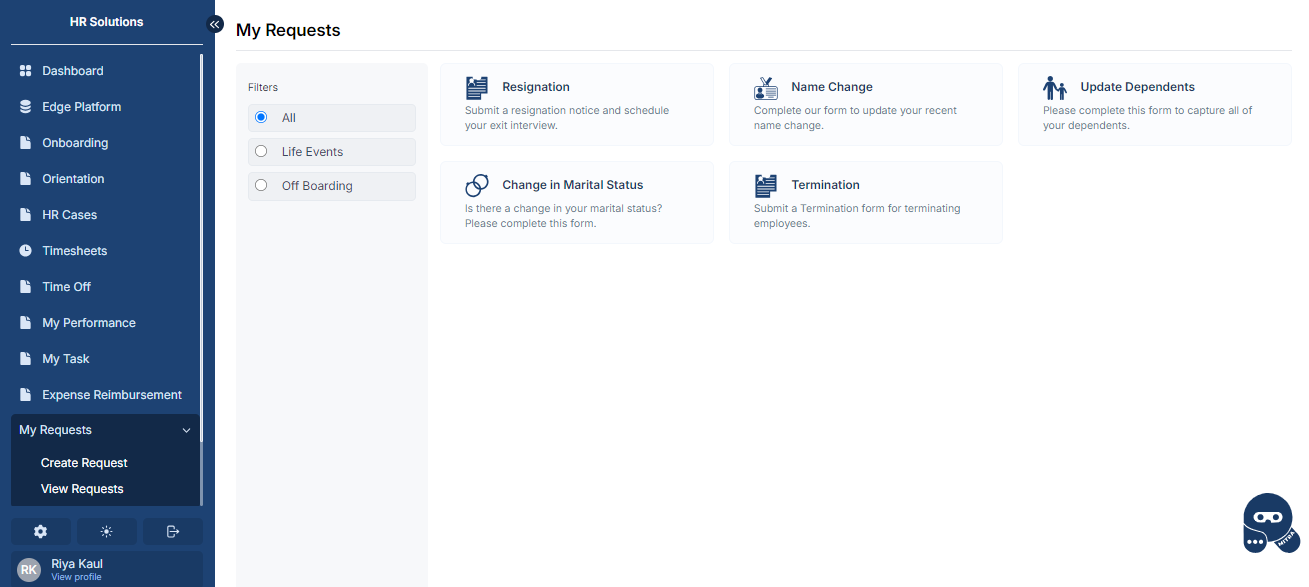
Click on Resignation card to create a request. The Resignation form would appear.
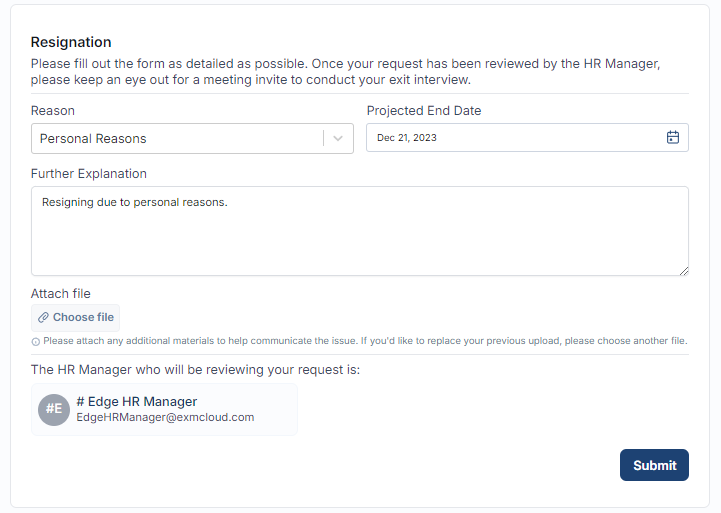
Fill out the following necessary details:
Fields | Description |
|---|---|
Reason | Provide the reason for Resignation. |
Projected End Date | Provide the projected end date for the last working day. |
Further Explanation | Provide a detailed explanation for resignation. |
Click on "Submit" button to submit the request. You will be redirected to the View Request screen.
Create Termination Request
In order to create a Resignation Request, navigate to My Requests > Create Request from the left navigator.

Click on Termination card to create a request. The Termination form would appear.
Termination Types
Normal Termination
Normal Termination involves selecting up to 20 employees for termination.
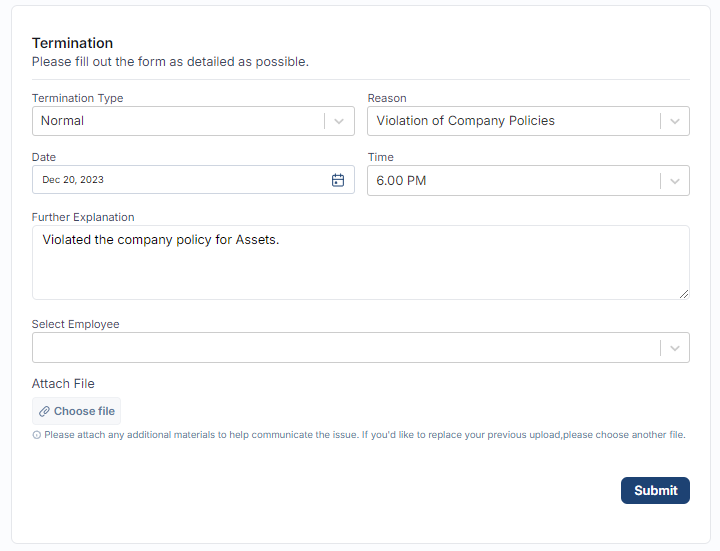
Fill out the following necessary details:
Fields | Description |
|---|---|
Termination Type | Normal |
Reason | Provide the reason for Termination. |
Date and Time | Provide the date and time the Termination would take place for the employees. |
Further Explanation | Provide a detailed explanation for Termination. |
Select Employee | Select up to 20 employees that need to be terminated. |
Click on "Submit" button to submit the request. You will be redirected to the View Request screen.
A separate Termination Request would be created for each employee added in the Request.
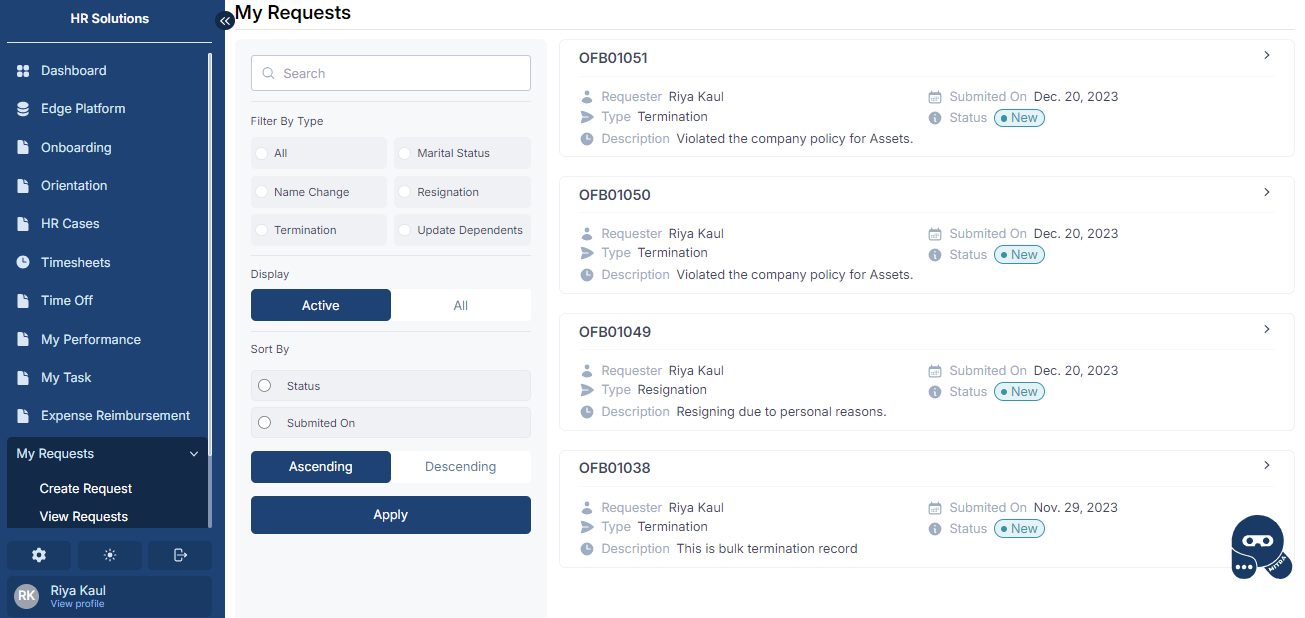
The Employee selected for Termination would be added in the Associates section on the request details page.
Emergency Termination
Emergency Termination involves terminating a single employee.
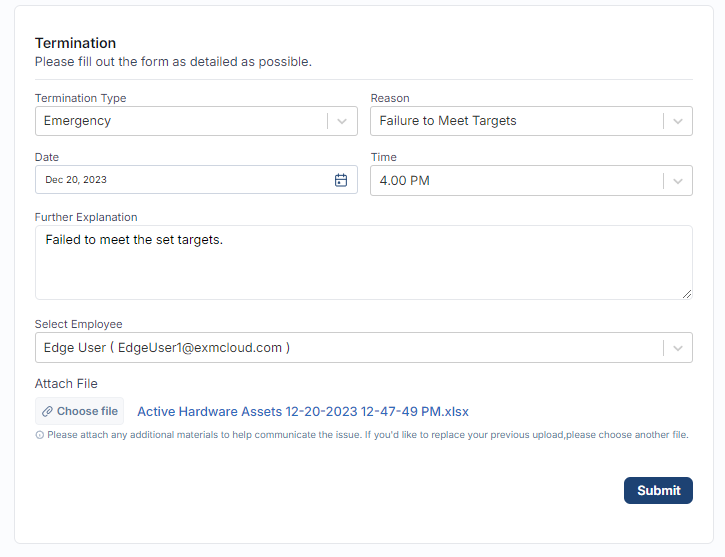
Fill out the following necessary details:
Fields | Description |
|---|---|
Termination Type | Emergency |
Reason | Provide the reason for Termination. |
Date and Time | Provide the date and time the Termination would take place for the employees. |
Further Explanation | Provide a detailed explanation for Termination. |
Select Employee | Select the employee to be terminated. |
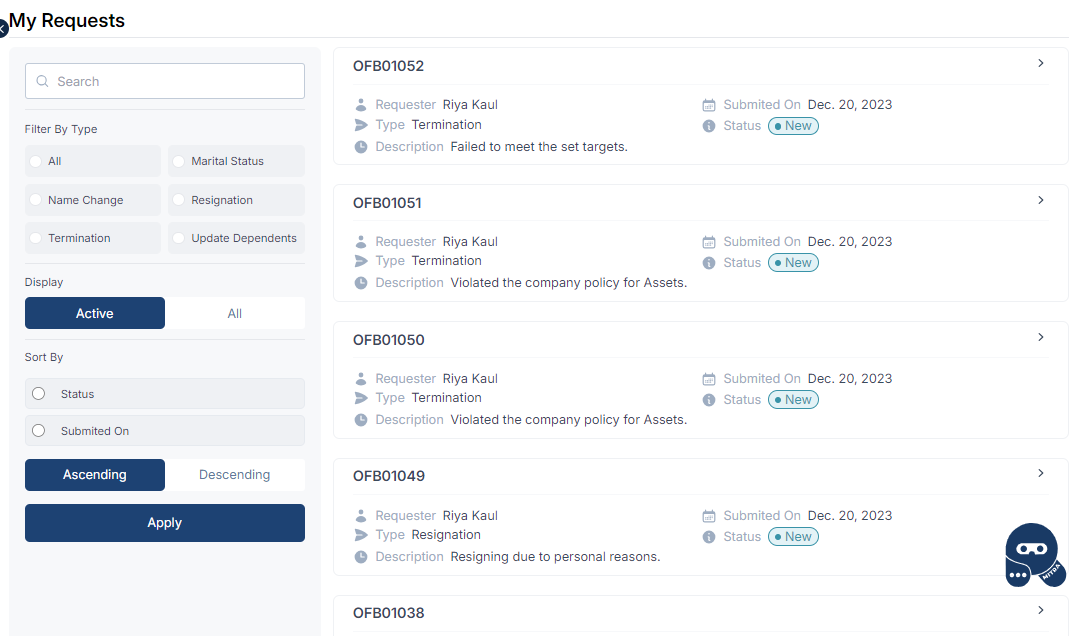
Click on "Submit" button to submit the request. You will be redirected to the View Request screen.
Bulk Termination
Bulk Termination involves terminating more than 20 employees.

The Bulk Termination form need to be downloaded first. The emails of the employees to be terminated are to be added in the downloaded excel and attached to the Bulk Termination Request.
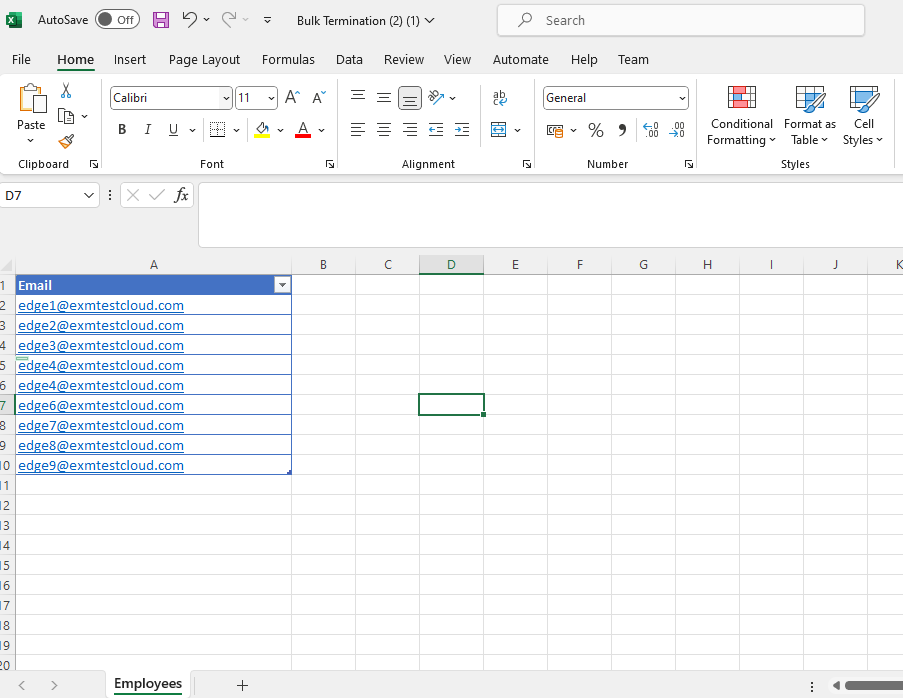
Fill out the following necessary details:
Fields | Description |
|---|---|
Termination Type | Bulk |
Reason | Provide the reason for Termination. |
Date and Time | Provide the date and time the Termination would take place for the employees. |
Further Explanation | Provide a detailed explanation for Termination. |
Attach the Bulk Termination file in the request with the employee's emails.
Click on "Submit" button to submit the request. You will be redirected to the View Request screen.
A separate Termination Request would be created for each employee added in the Bulk Termination file.
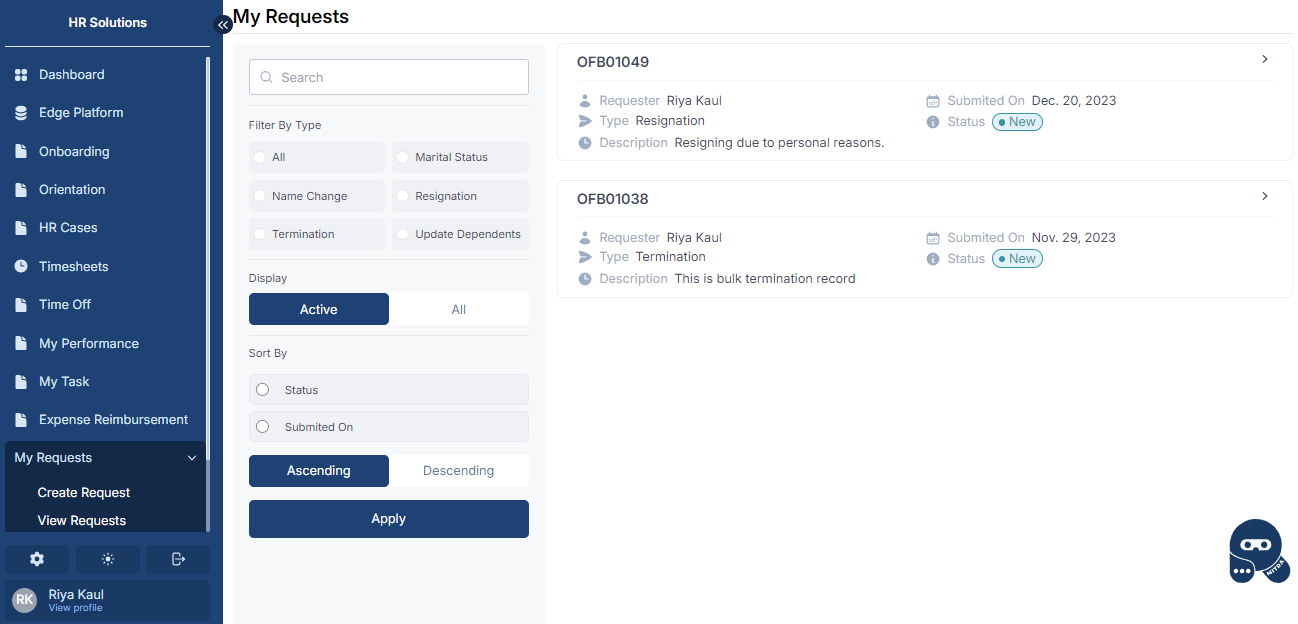
View Offboarding Request
In order to view a Resignation/Termination Request, navigate to My Requests > View Request from the left navigator.
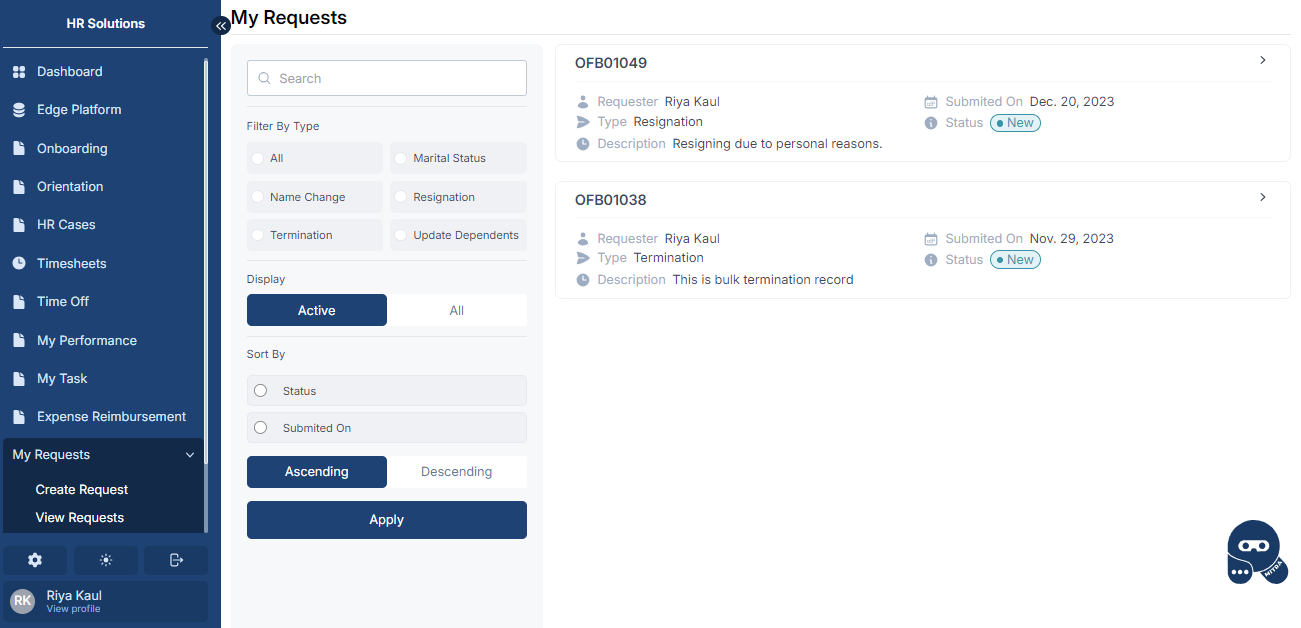
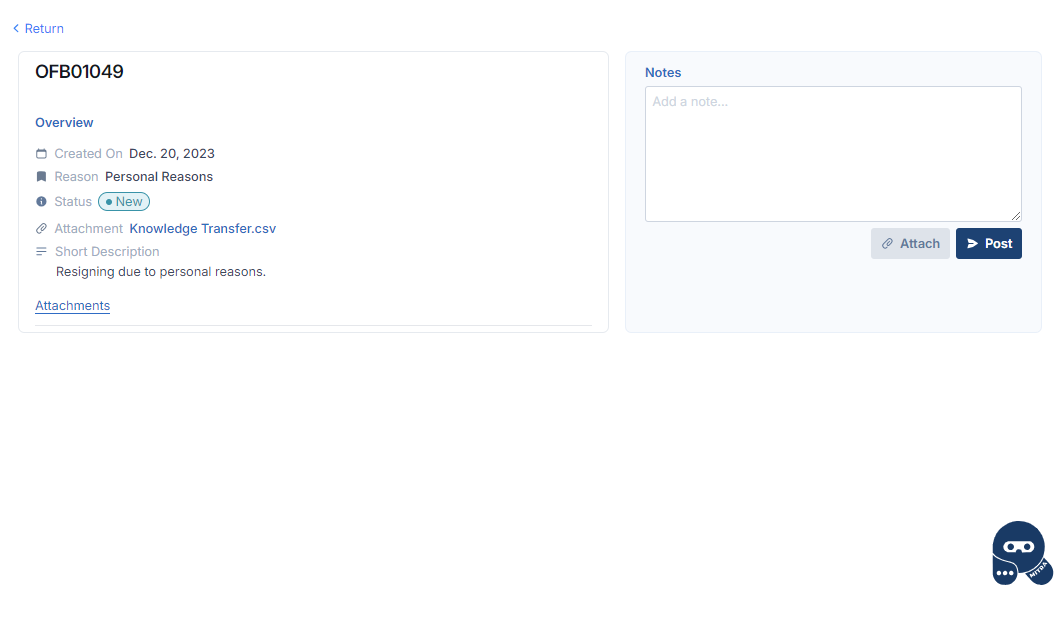
Click on the request to view its details. Any Notes and attachments related to the request can be added here.
Workflow Configuration
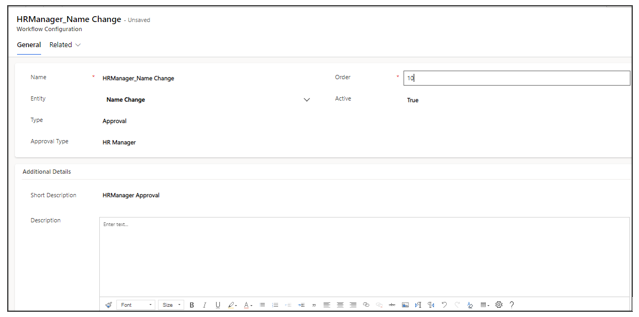
A "workflow configuration" table is a database table within an application that stores information outlining the specific details and steps of a workflow or process. This table serves as a centralized repository for configuring and customizing the execution of various activities or tasks associated with different processes.
If two or more tasks within the workflow share the same order number, it implies that these tasks are intended to be executed simultaneously or in parallel.
Field | Description |
|---|---|
Name | A unique identifier or label for the workflow, often concatenated with the "entity" field, providing clarity on the purpose of the configuration (e.g., "Name_Entity"). |
Entity | Specifies the type of life event or process associated with the workflow (e.g., name change, update dependent, change marital status). |
Type | Categorizes the task as either a regular task or an approval process. |
Approval Type | Identifies who needs to approve the task or process, whether it's an individual, an HR Manager, or a designated group. |
Order | Defines the sequence or order of steps to be executed within the workflow, ensuring a structured and organized flow of activities. |
Active | Specifies whether the process is active or inactive. |
Support Group | Indicates the group that should be notified and involved when the workflow involves a task. |
Short Description | Provides an explanation and nature of the workflow. |
Description | Provides a more detailed description of the workflow, offering additional context or information for better understanding. |
