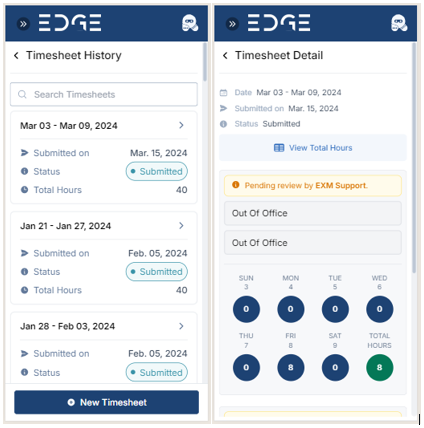
Timesheet management is the practice of recording how much time you spend on tasks or projects. It assists you in keeping track of the things you work on, when you start and finish, and how long you work on them. You can use this data to track managing projects, tracking productivity, and calculating pay.
Create Timesheet
After signing in successfully, Navigate to Timesheets.
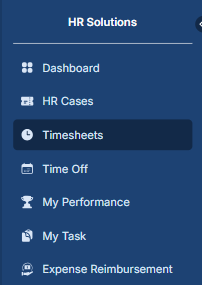
Accessing the Timesheet
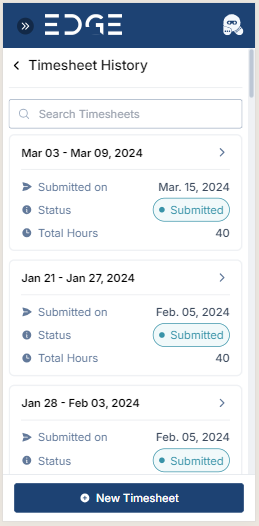
When you click on the "Timesheets" option in the menu, you'll see two main things. First, you'll find a list of all the timesheets you've already filled out and submitted. This list shows when you submitted them, status and total hours you worked on. Below this list, there's a button called "New Timesheet." If you need to add a new timesheet, you can click this button. It's easy to use and helps you keep track of your time effectively.
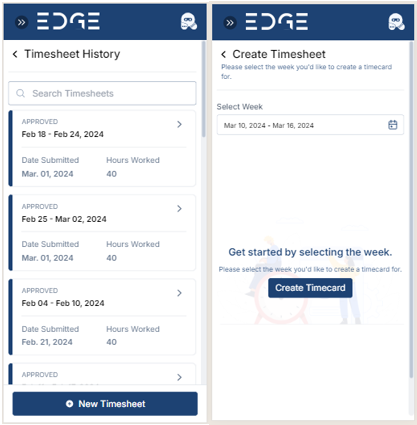
Filling the Timecard
To initiate the process of adding timecards for specific projects, begin by selecting the week's start date. Afterward, proceed to click on 'Create Timecard.
To begin filling out the timecard, choose the appropriate category (either "Project" or "Out of Office").
If you select "Project": Choose the project from the dropdown menu, then select the associated task from the menu for detailed entry.
If you select "Out of Office": The 'Task' field will only appear, allowing you to describe your 'Out of Office' activity.
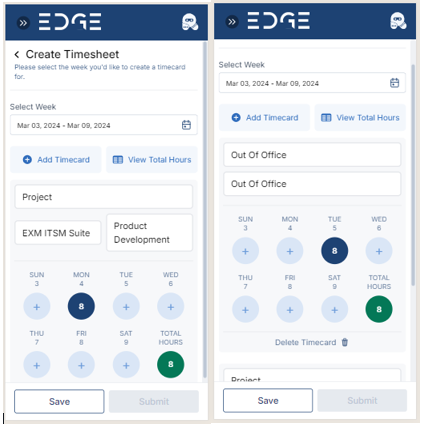
Add Hours and Notes for a Particular Day in Timecard
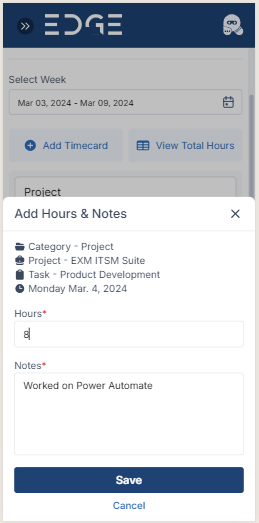
For any day within the selected week, you can add specific hours and notes.
Click on the "Plus" icon next to the day you want to add hours and notes.
Enter the number of hours worked for that day and any relevant notes or comments. This process can be repeated for other days to add information to the Timecard.
Submit the Timesheet
After adding hours and notes for specific days, save the entry or submit it.
Before submitting, it's a good practice to save your work to prevent data loss.
Click on the "Save" button. This will store your entries temporarily.
Review the entered timecards, including the added hours and notes, to ensure accuracy.
If you made any errors, you can edit the timecards before final submission
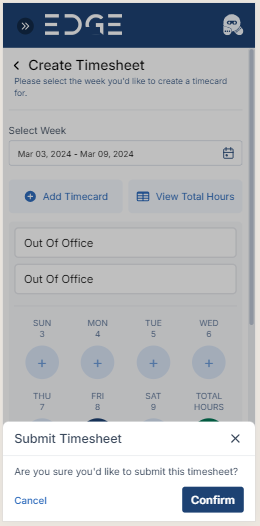
After reviewing and ensuring the accuracy of your entries, it's time to submit your timecard.
Click on the "Submit" button.
On successful submission, you will receive a confirmation message. Click "Confirm" to proceed
Upon submission, you will be automatically redirected to the "Timesheet History" screen, where you can access your submitted timesheets.
Notifications
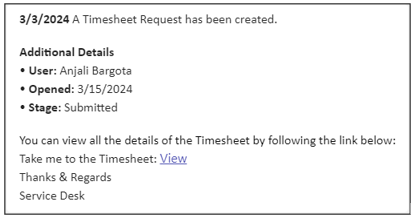
An Email notification will be sent to the user with the details and link
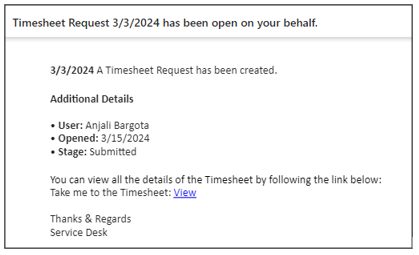
Microsoft Teams notification will be sent to the user with the details and link
View Timesheet
The "Timesheet History" screen simplifies the process of tracking and managing timesheets for users. It provides transparency and allows users to monitor the status and details of their submitted requests in a user-friendly and efficient manner.
You can see all your timesheet requests and their details on the Timesheet History screen. Just click on the one you want to look at more closely, and a new page will show you all the details.