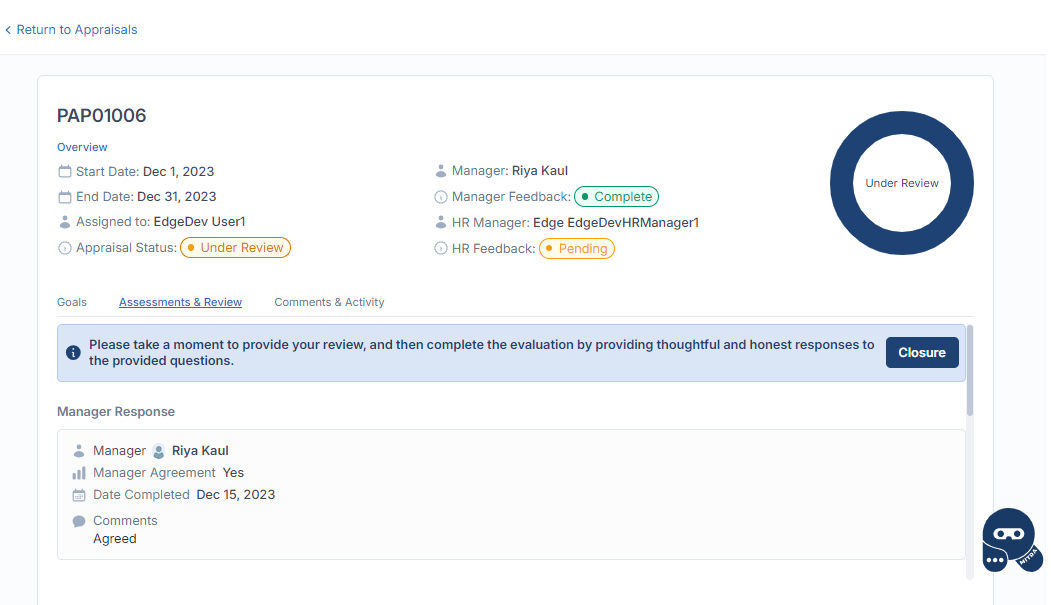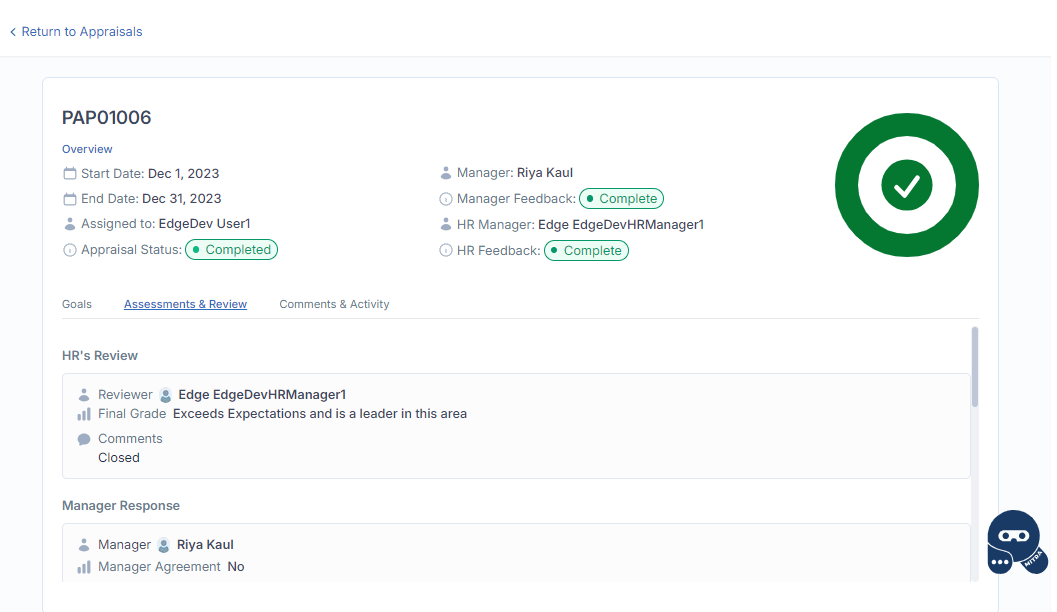
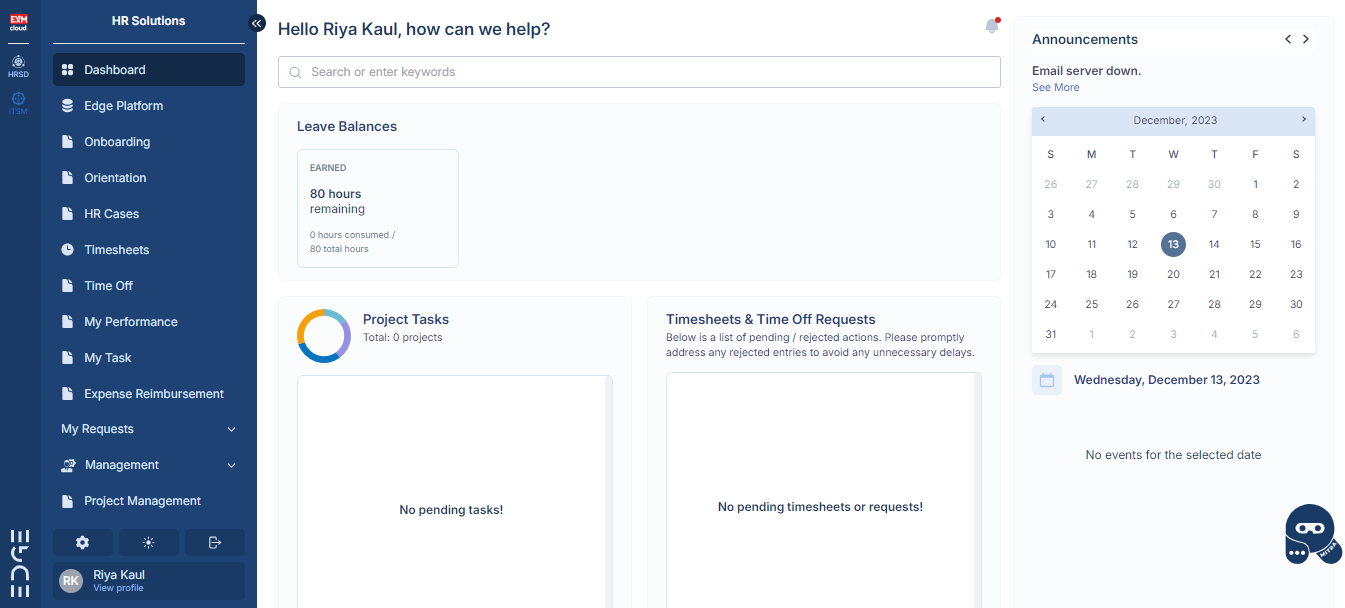
The portal offers a user-friendly and interactive platform for both end users and managers to effectively handle the appraisal tasks . Once logged in, they will have access to the dashboard's homepage.
Create Performance Appraisal
In order to create Performance Appraisal Record of an Employee, Manager need to navigate to Management > Performance page.
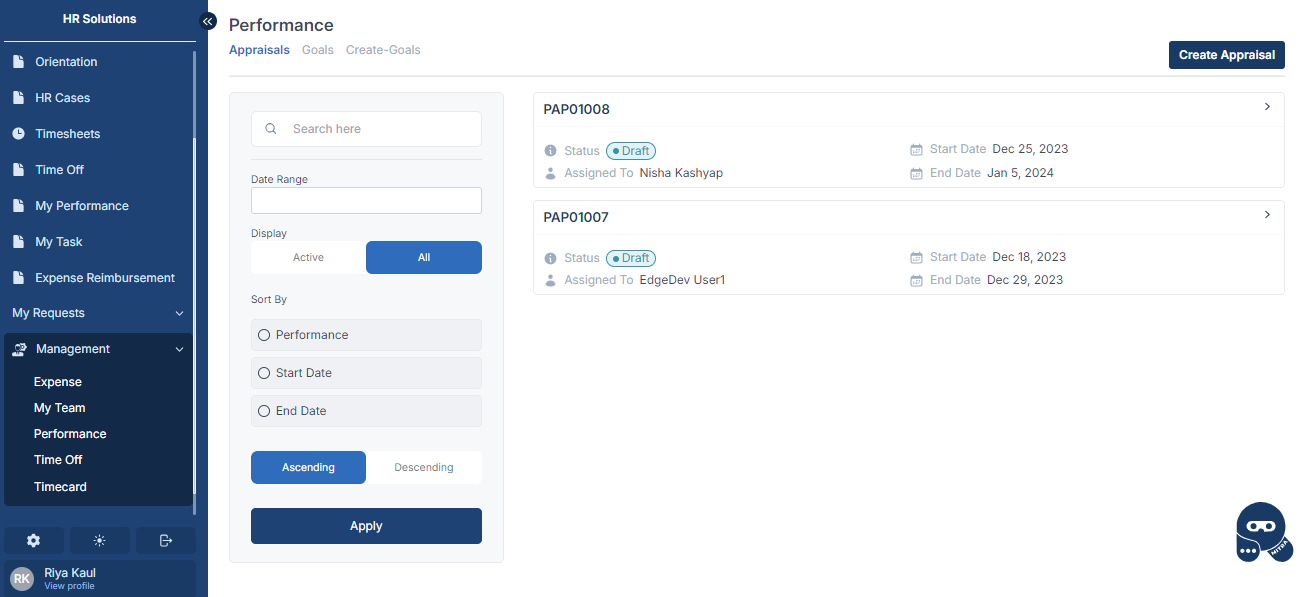
Click on the "Create Appraisal" button to create the Performance Appraisal record of an employee.
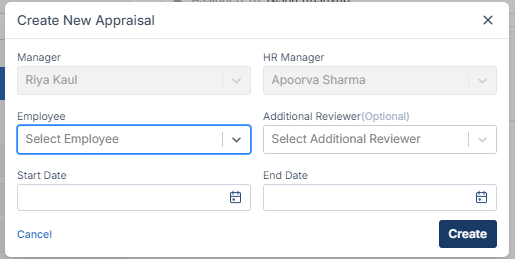
Enter the following details:
Fields | Description |
|---|---|
Employee | Select the employee for whom you want to create the Performance Appraisal record. |
Start Date | Select the start date of the Performance Appraisal Evaluation period. |
End Date | Select the end date of the Performance Appraisal Evaluation period. |
Click on "Create" to create the record.
In order to view the details, click on the record created above.
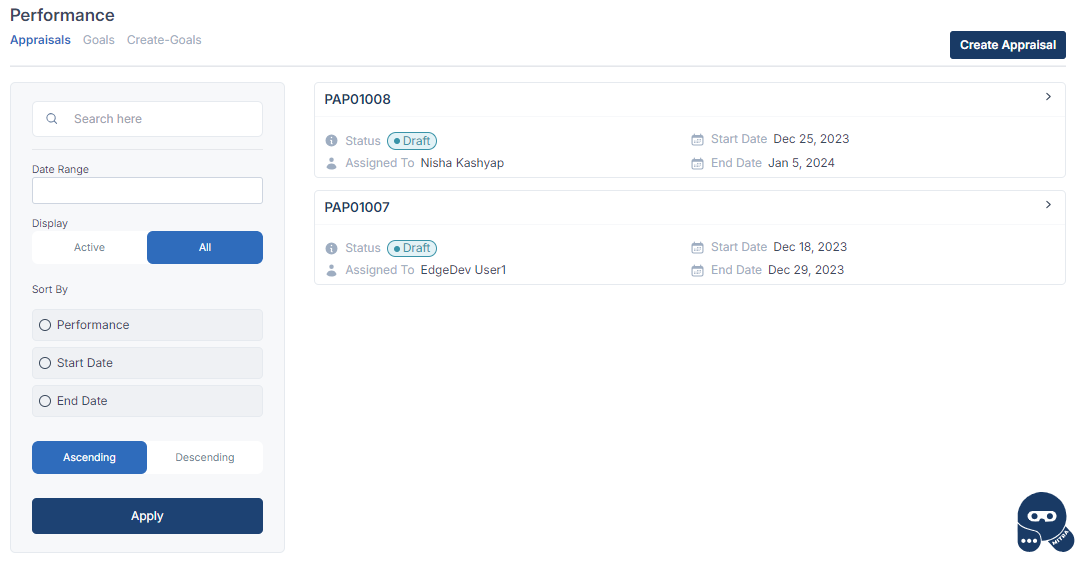
The details screen would appear.
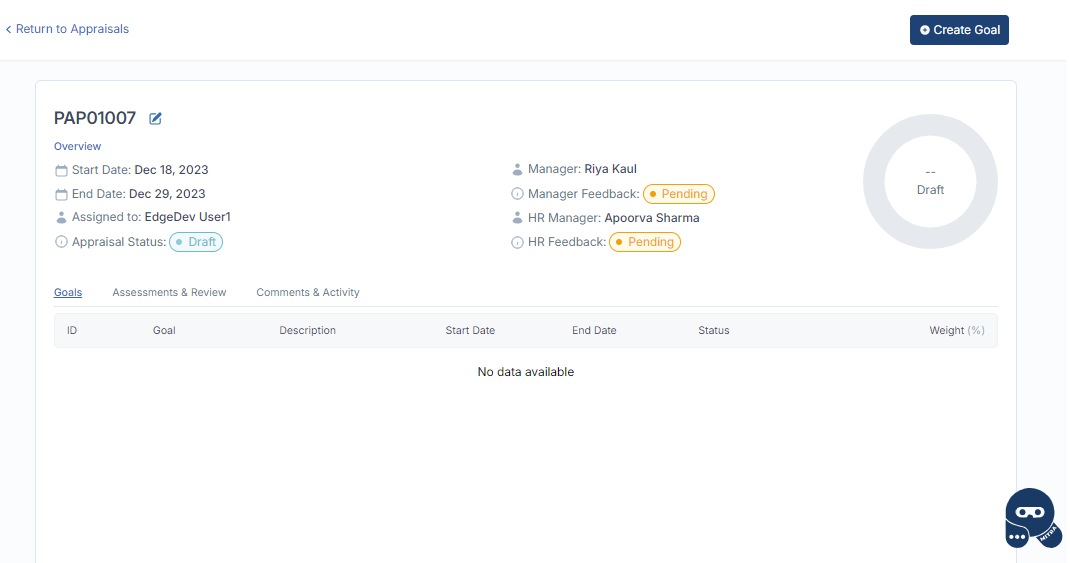
The details page include the following sections:
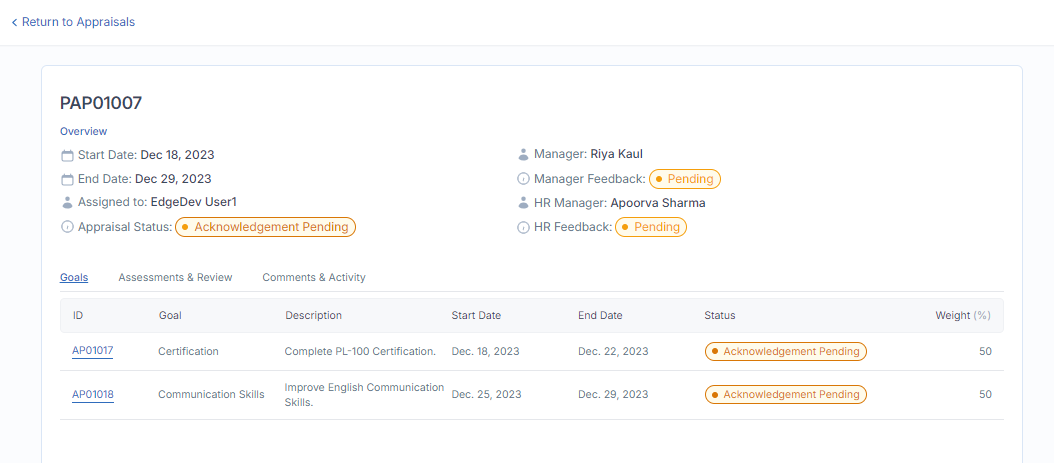
Goals - The goals set for the employee would be visible in this section.
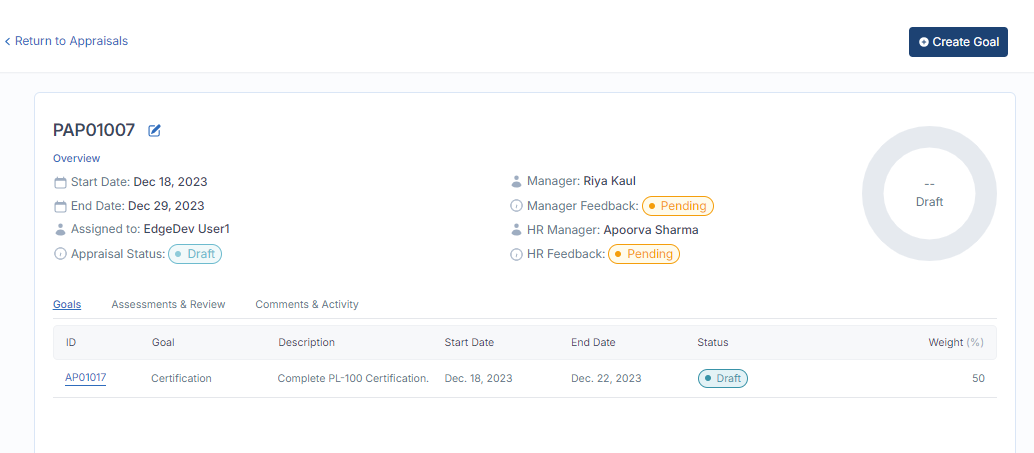
Assessments & Review - Self Evaluation and Manager's Evaluation for the employee performance would be visible in this section.
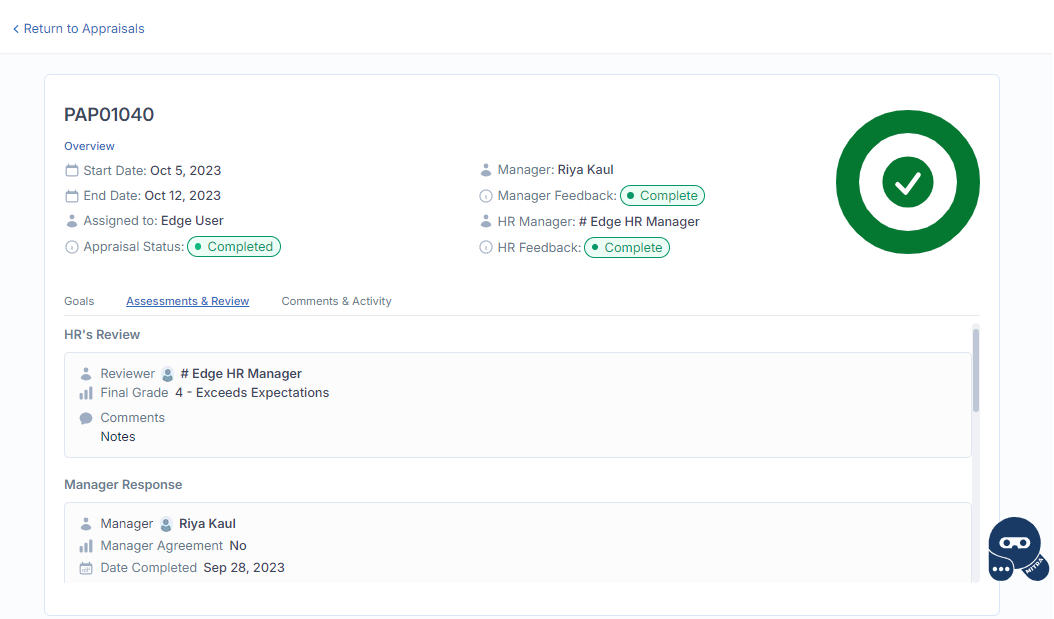
Comments & Activity - Any notes/attachments can be added in this section.
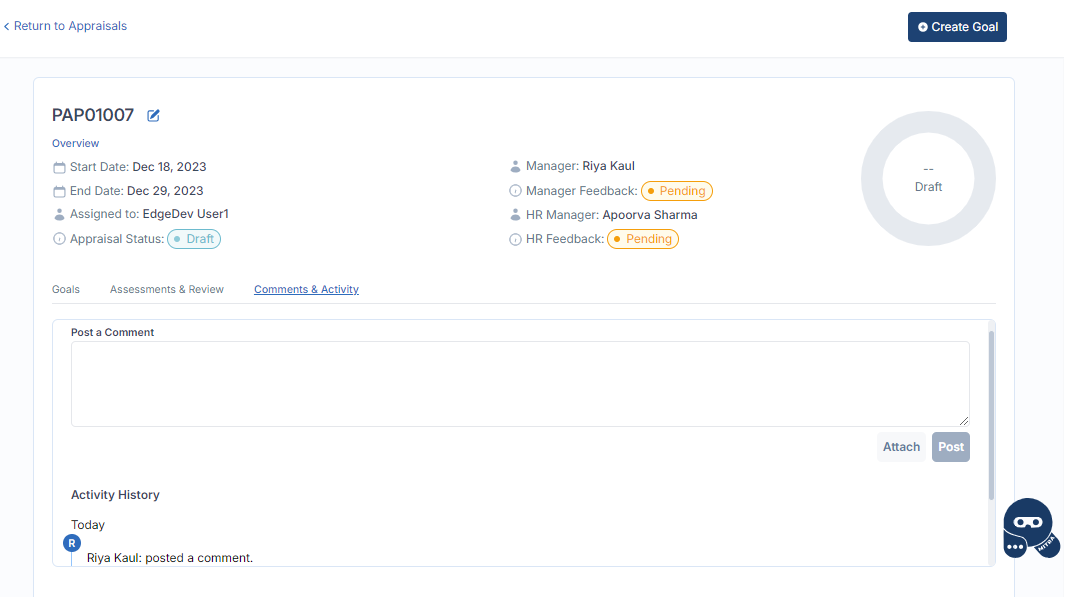
Create Goals
In order to set the goals for Employee, Managers can open the Performance Appraisal record of the Employee. The below screen would open with the details of the Performance Appraisal.
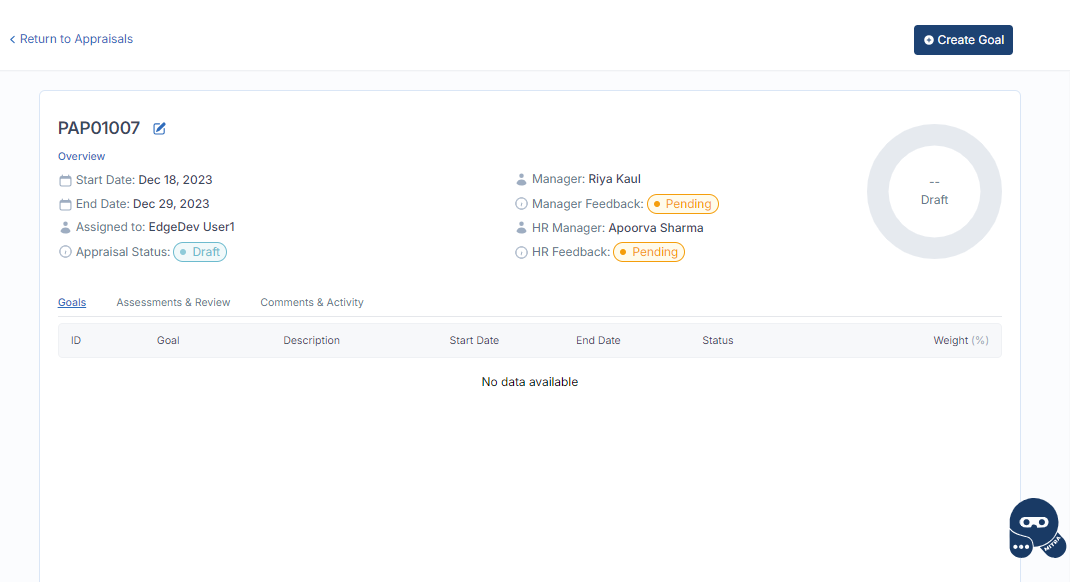
Click on "Create Goal" button to set the goals for employee.
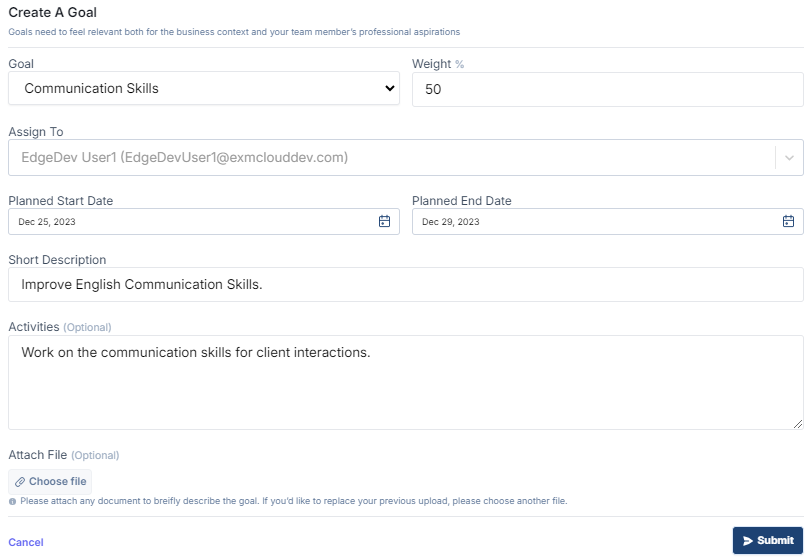
Enter the following details:
Fields | Description |
|---|---|
Goal | Define the category of the goal. |
Weight | Define the weightage of the particular goal in the Performance Evaluation. |
Planned Start Date | Set the planned start date for the goal. |
Planned End Date | Set the planned end date for the goal to be completed. |
Short Description | Provide a short description of the goal. |
Activities | Describe the goal and the activities to be done for the goal to be completed. |
Click on "Submit" button.
The weightage of all the goals in performance appraisal has to sum up to 100%
On click of "Submit" button, the goals would then be visible to the employee to review and acknowledge them.
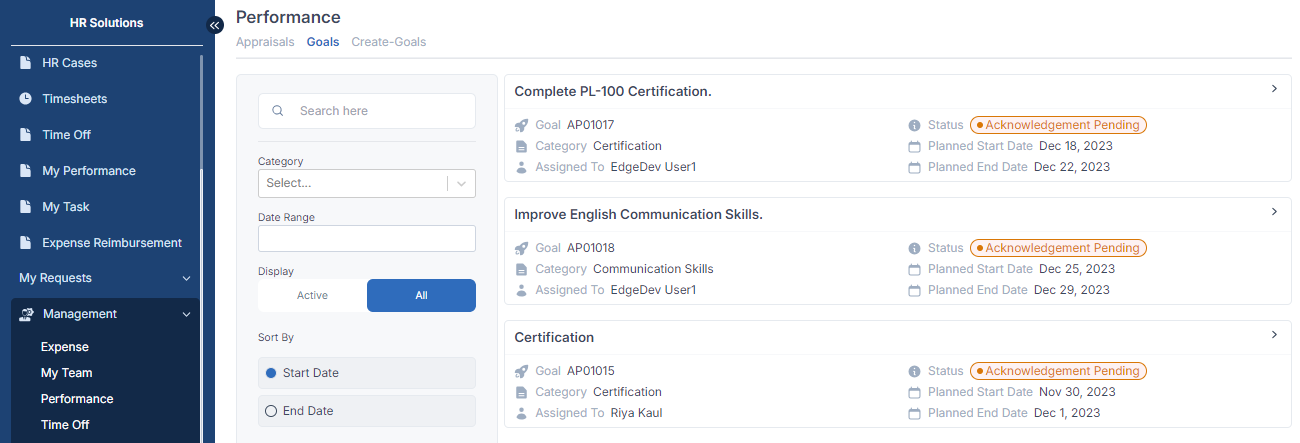
In order to view the goal details, click on the goal created above or Manager can navigate to Management > Performance > Goals tab to view all the goals that have been set by them for the employees.
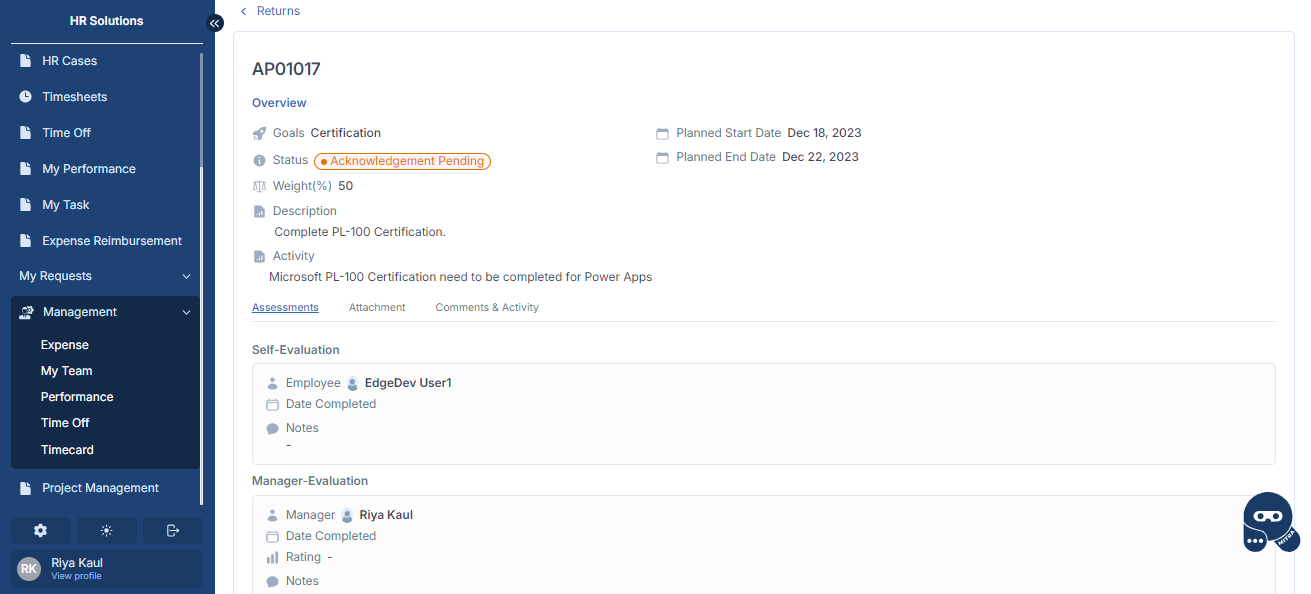
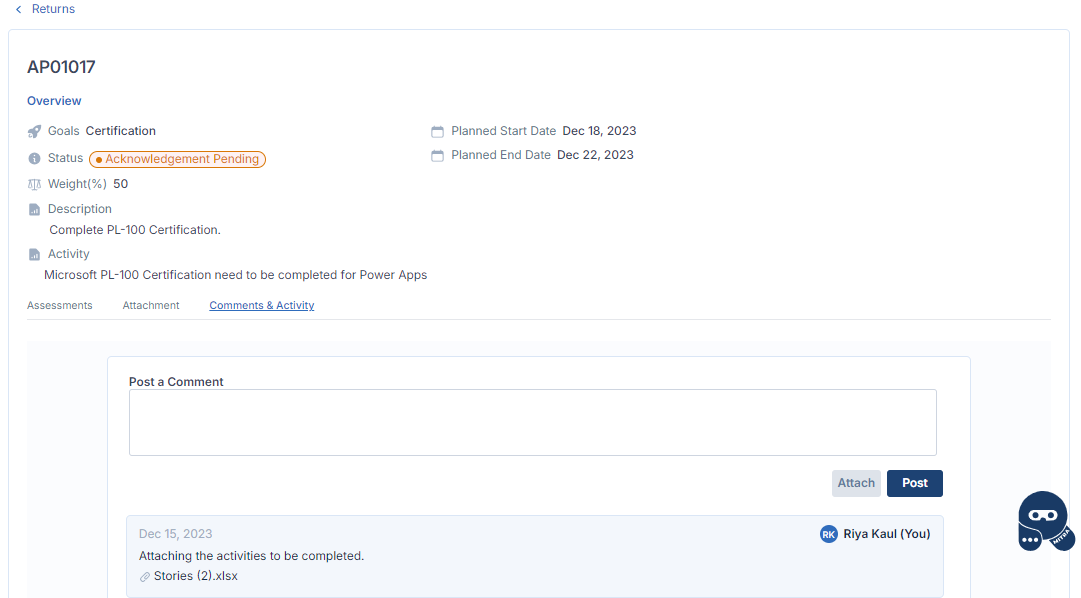
The goals details page have the following sections:
Assessments - Self Evaluation and Manager's Evaluation for the employee performance on the goal would be visible in this section.
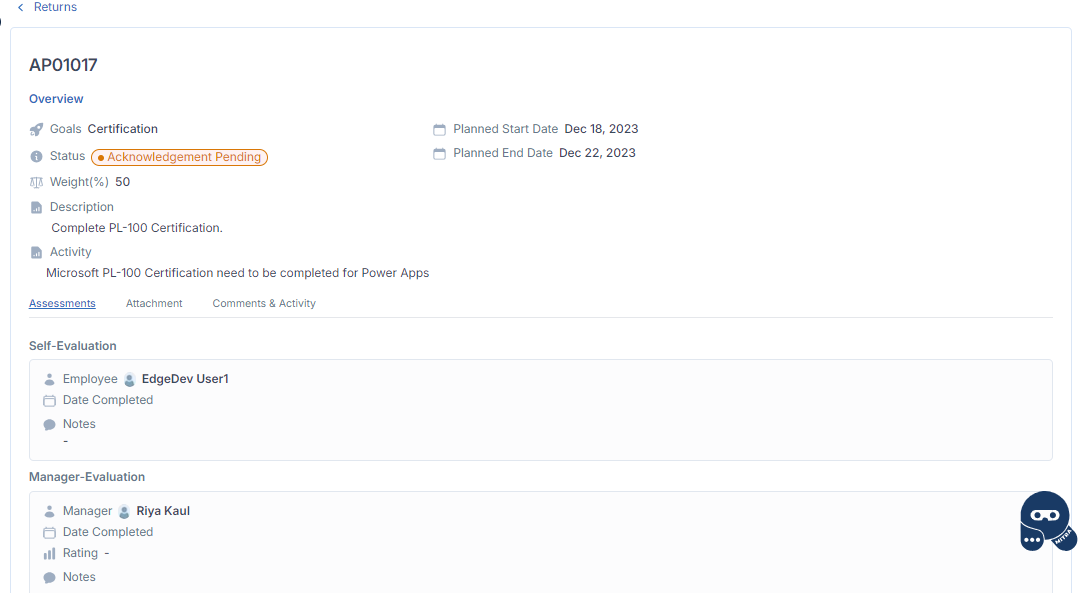
Attachment - Any attachments added in the notes section would be visible here.
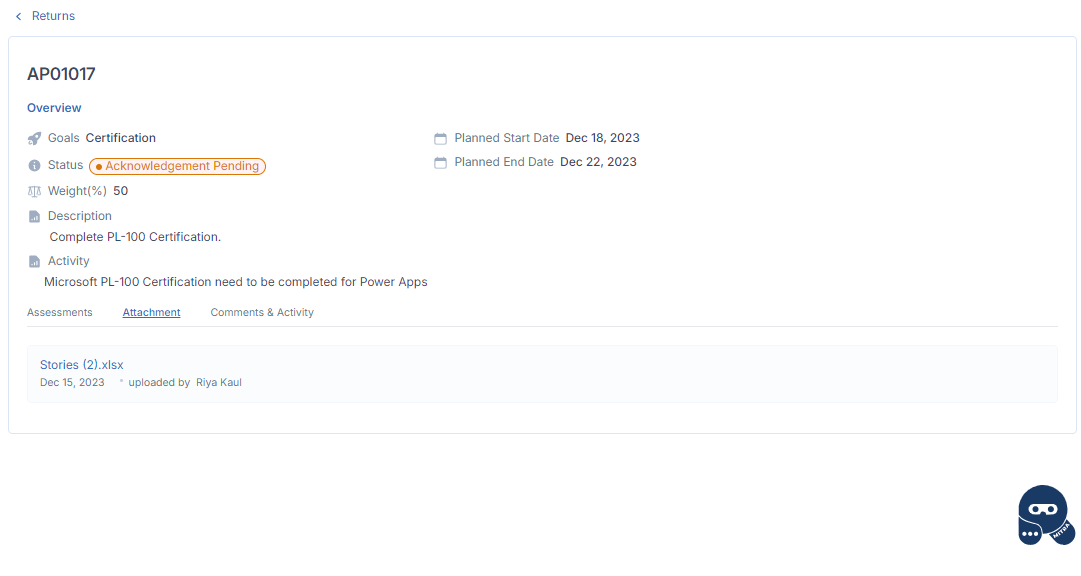
Comments & Activity - Notes and attachments can be added in this section.
Employee Appraisal and Goal Acknowledgement
Once the goals are created and submitted by the Manager, the Employee need to acknowledge the goals whether they agree/disagree to them.
To do so, Employee need to navigate to My Performance section.
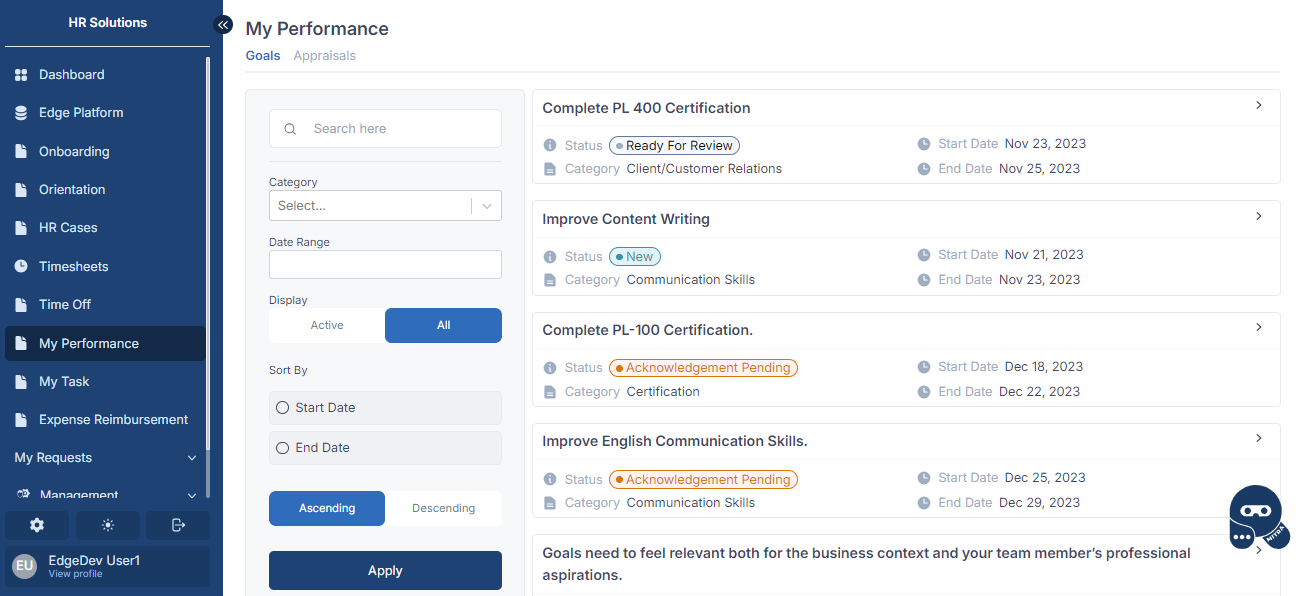
All the goals set for the employee would be visible in this section.
The Performance Appraisal Record of the Employee can be seen in the Appraisals tab.
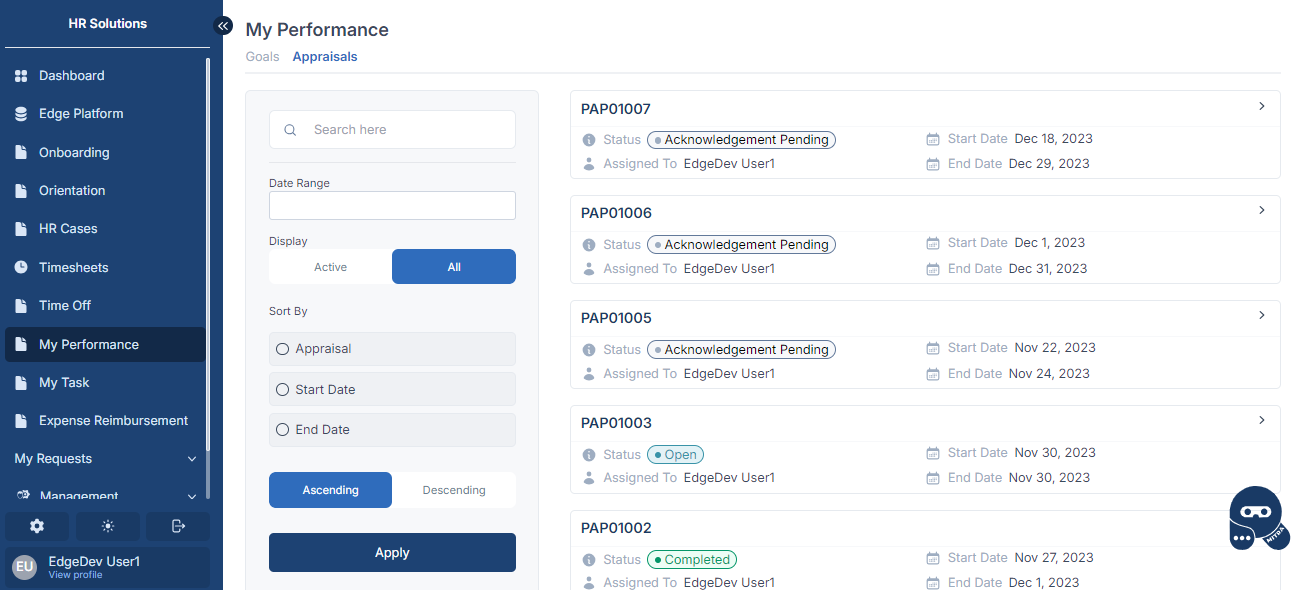
Open the Appraisal record for which the goals need to be acknowledged.
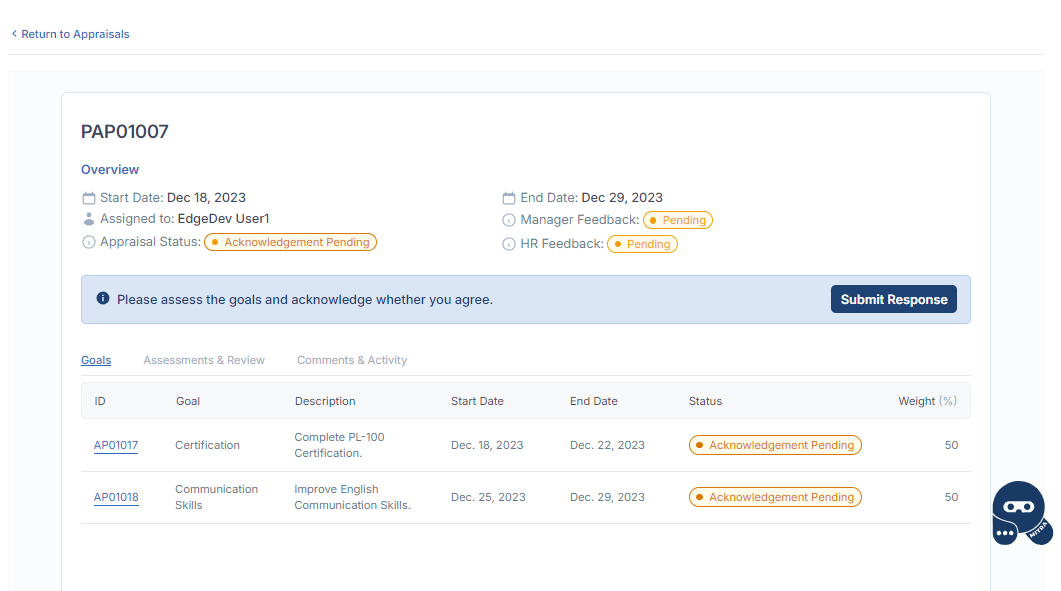
Open the goal for which the acknowledgement need to be given.
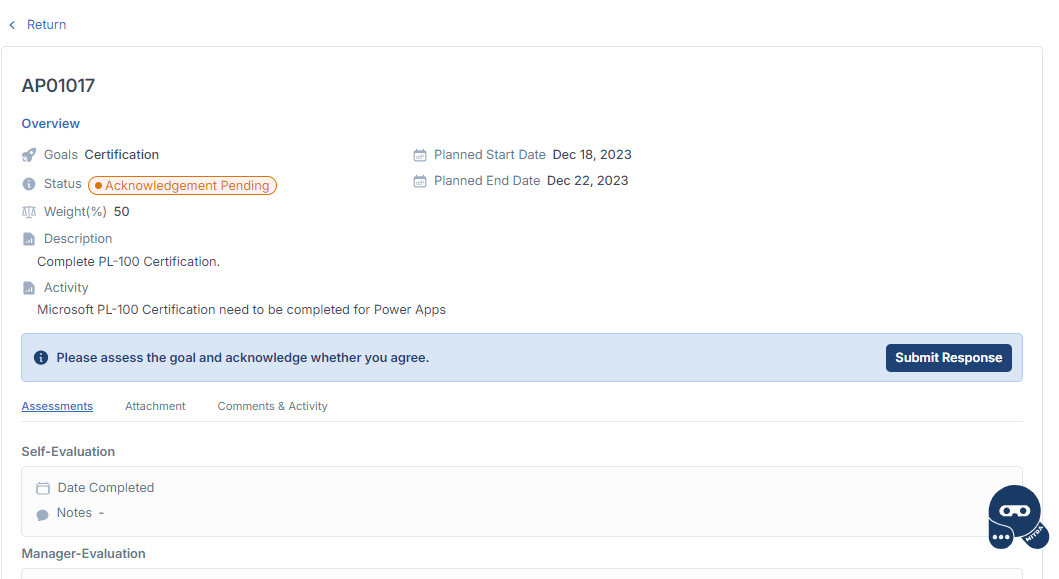
Click on "Submit Response" to agree/disagree to the goal.
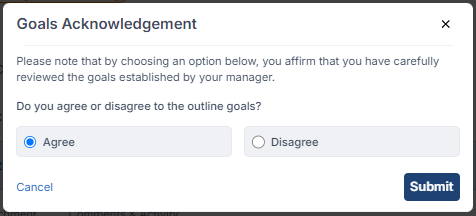
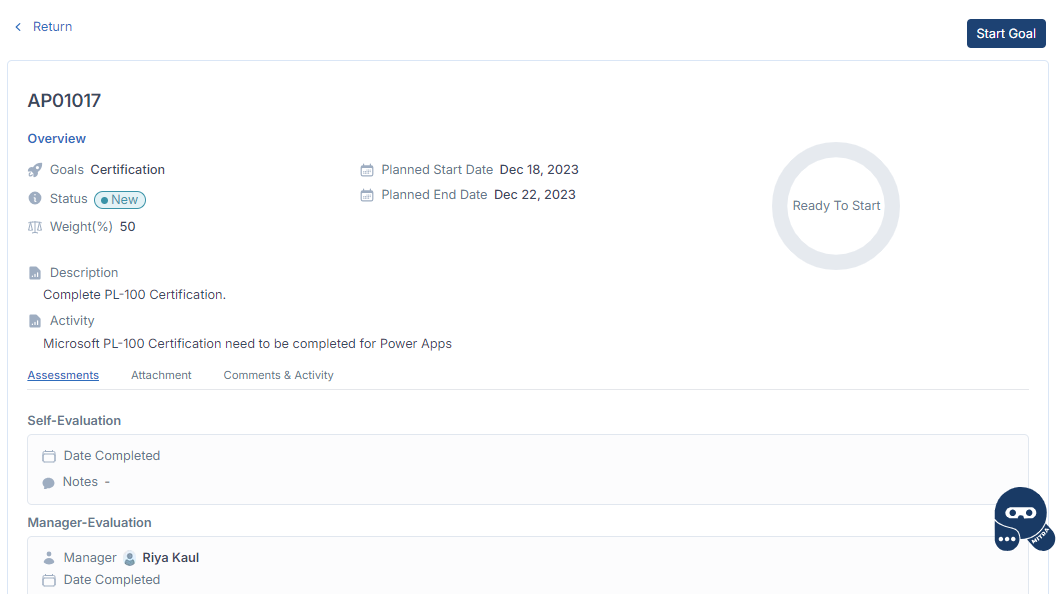
A pop-up would appear. If agreed, the goal status would change to "New" and the Employee can start the goal.
If disagreed, the goal status would change to " Acknowledgement Rejected ".
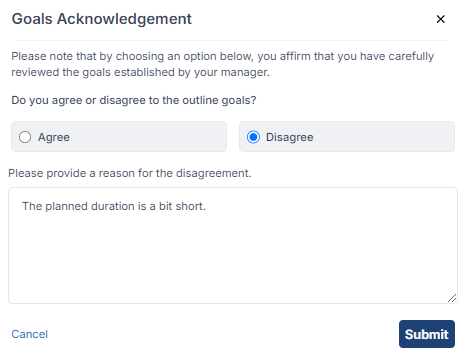
The manager can then edit the goal and resubmit it for the Employee to acknowledge again. To do so, Manager need to navigate to the Management > Performance page. Open the Performance Appraisal Record of the Employee and the goal that was disagreed on.
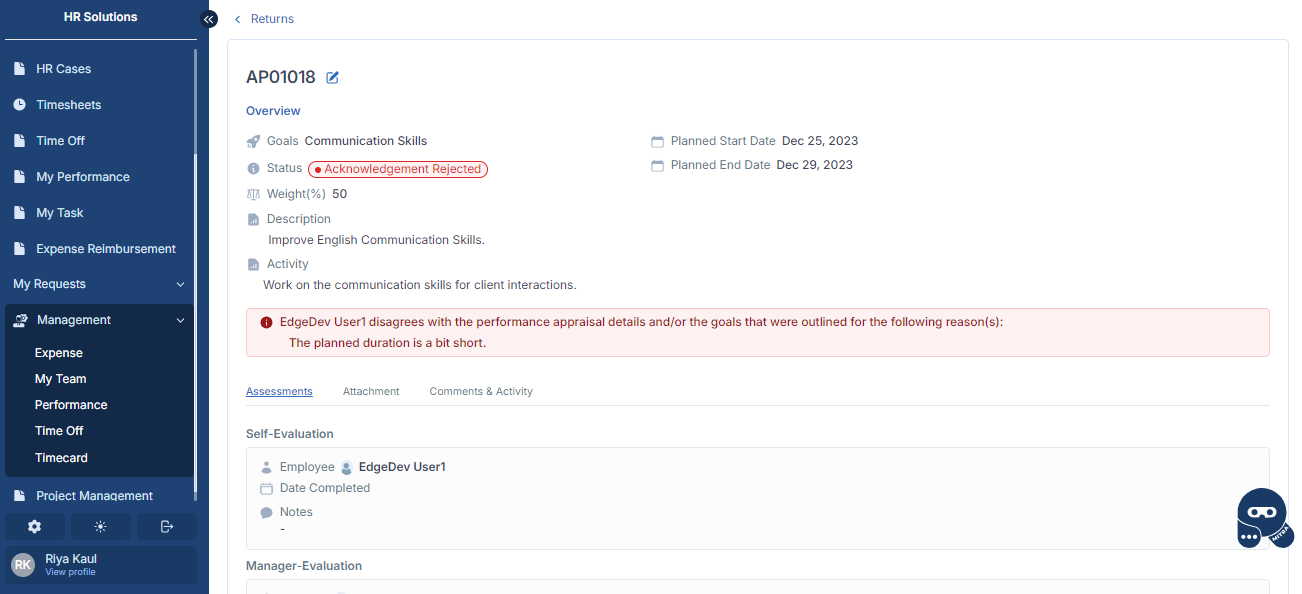
Click on the "Edit" icon to edit and resubmit the goal. The goal status would again change to " Acknowledgement Pending ".
The Employee would need to again acknowledge the goal. To do so, Employee need to navigate to My Performance section and open the goal for which the acknowledgement is pending.
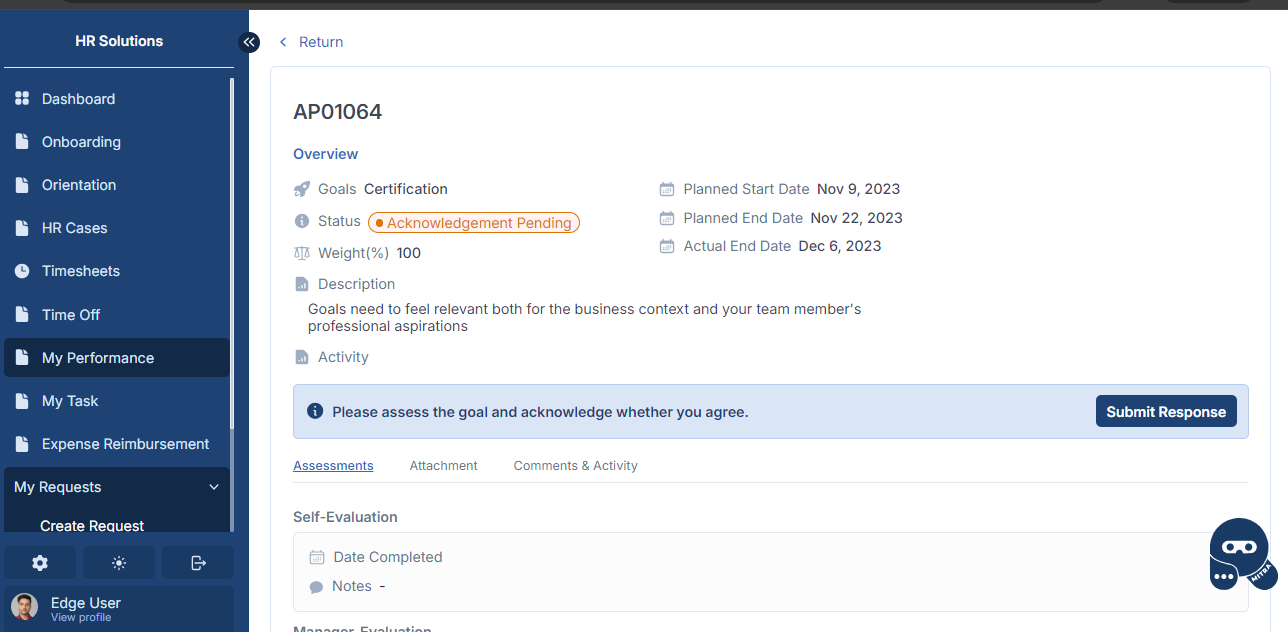
Click on "Submit Response" to agree/disagree to the goal. Once the goals are agreed upon, the Employee need to acknowledge the overall Performance Appraisal. Click on "Submit Response" to acknowledge.
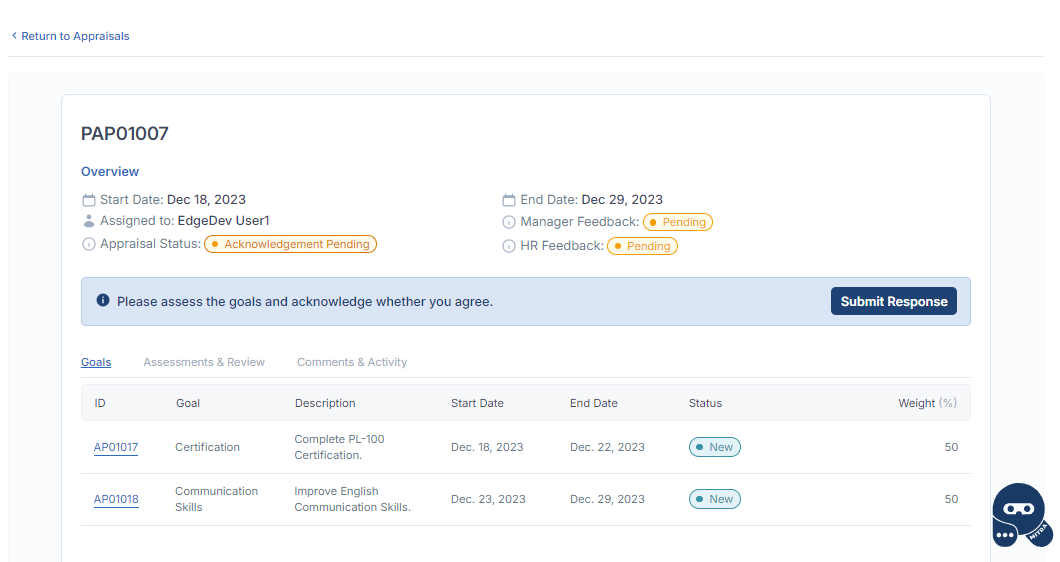
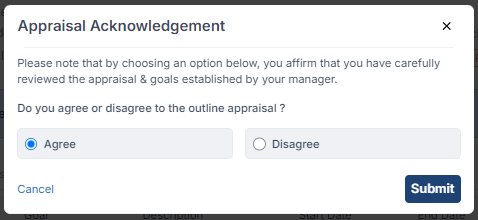
Once Agreed, the Appraisal Status would change to "Open".
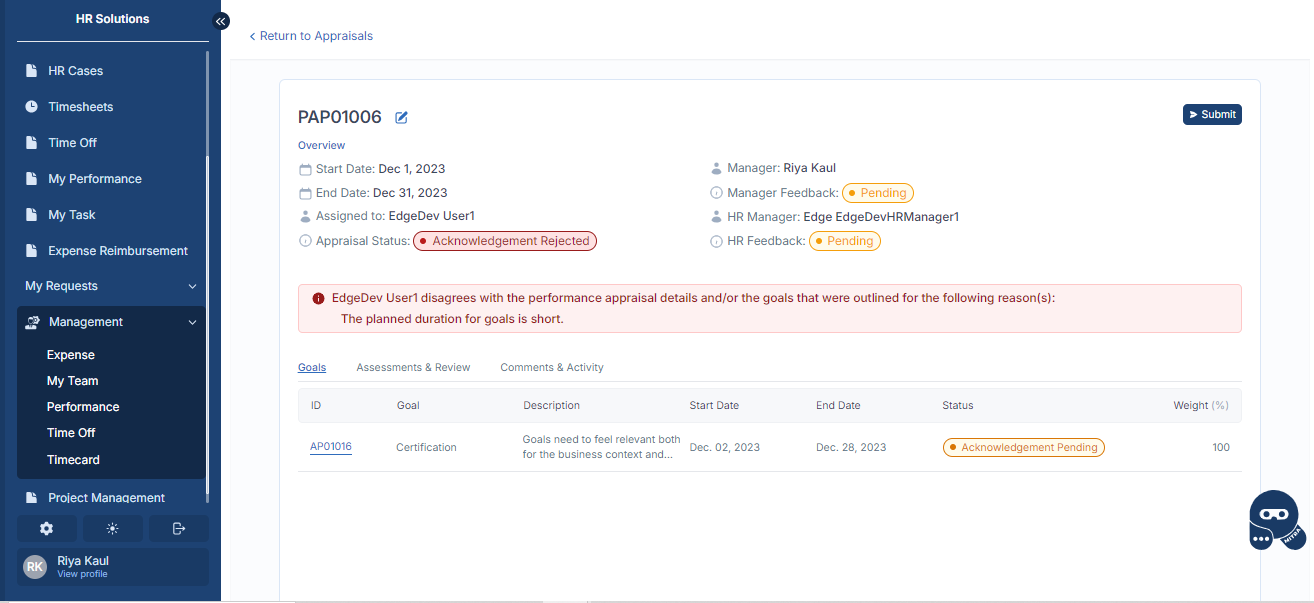
If Disagreed, the Employee need to provide the disagreement reason and the Appraisal status would change to "Acknowledgement Rejected".
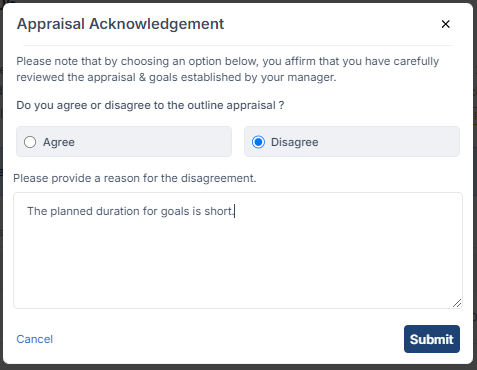
In that case, the Manager would need to edit the Appraisal record or the goals accordingly and resubmit them for the Employee to acknowledge by navigating to Management > Performance page.
Goal Completion Process
Once the Employee has agreed on the Appraisal record and the goals, they can start with the goal.
Navigate to My Performance section and open the goal on which the you need to work on from the Goals tab or open the Appraisal record and then the included goal.
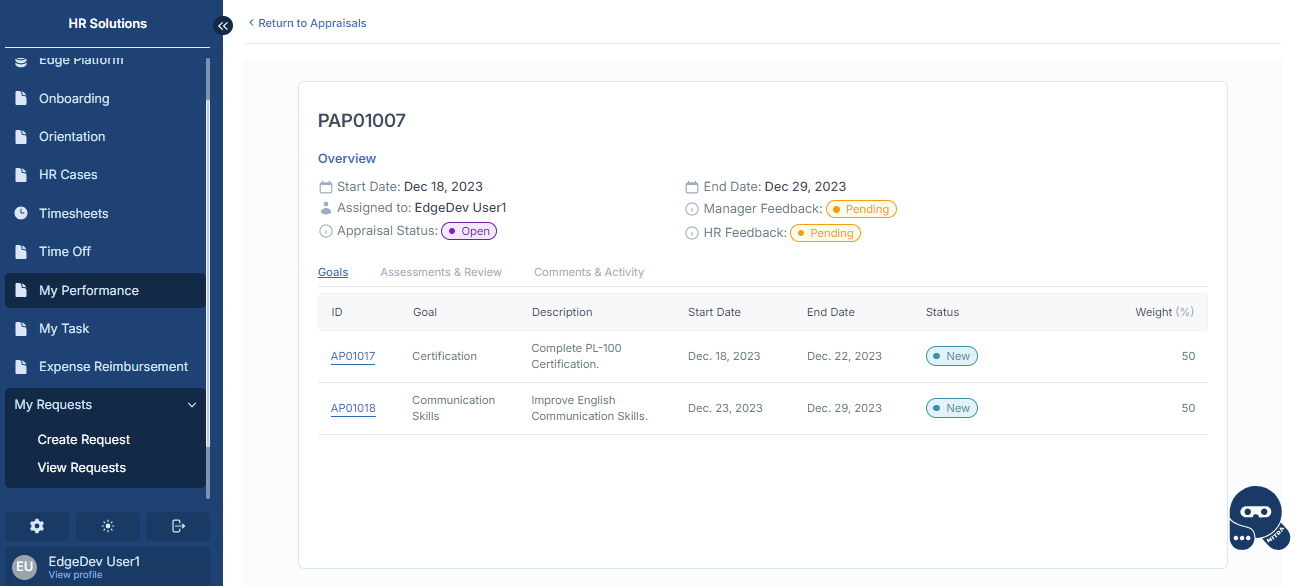
The goals detail page would open. Click on "Start Goal" button to start with the goal.
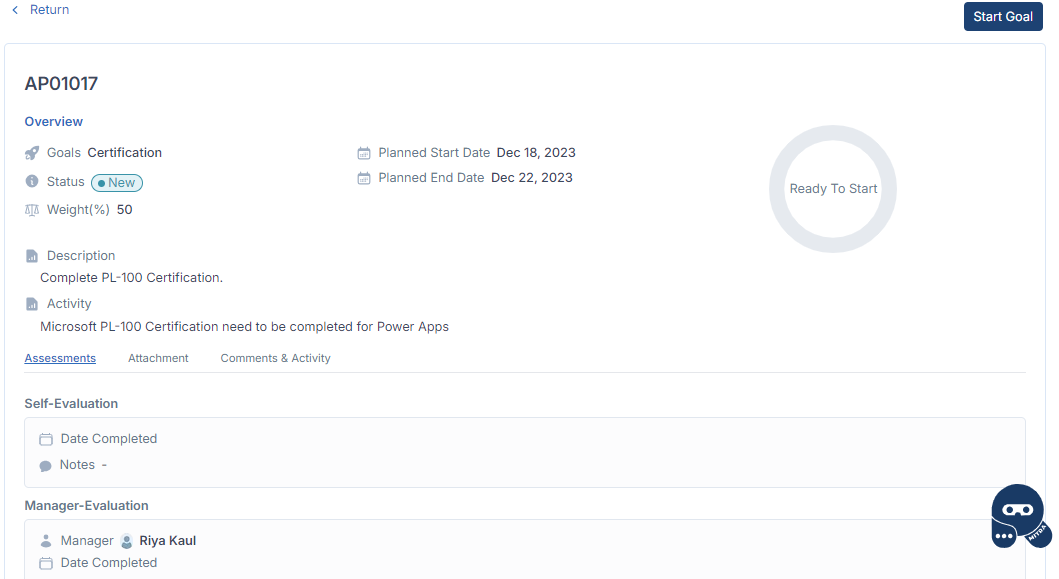
Provide confirmation on the actual start date of the goal. The Employee can change it.
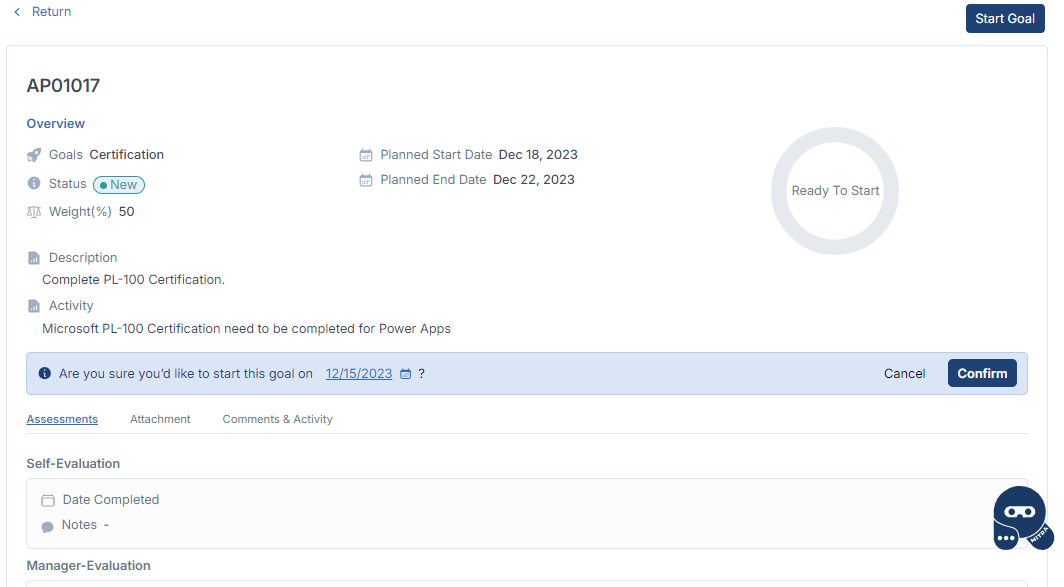
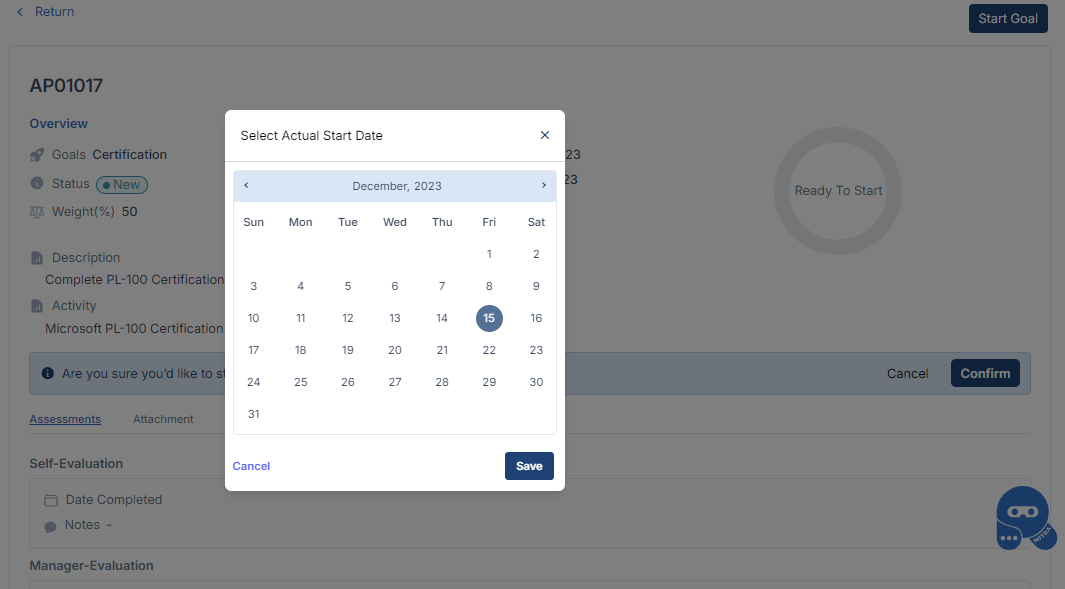
On click of "Confirm", the goal status would change to "In Progress"
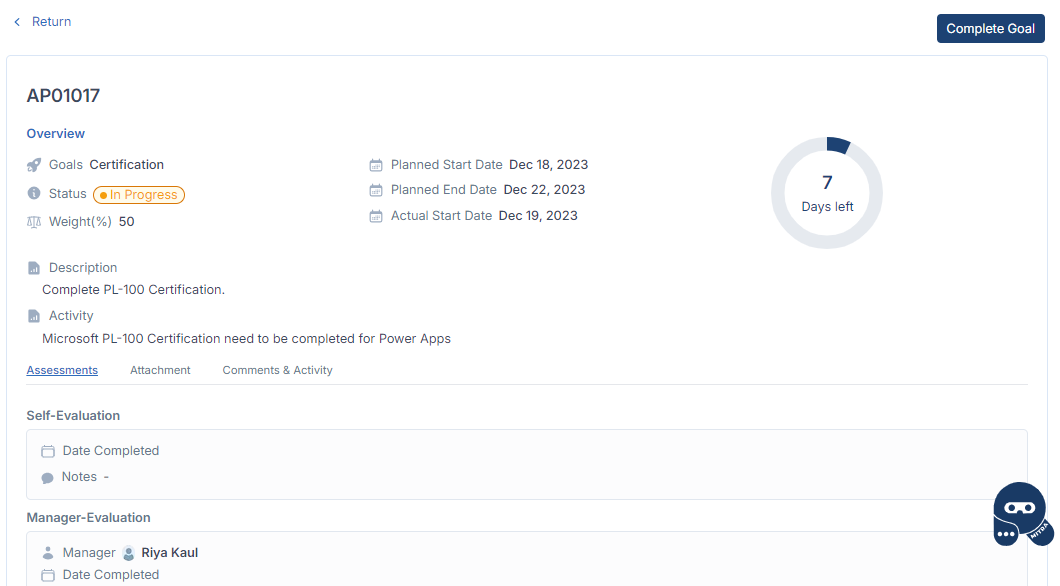
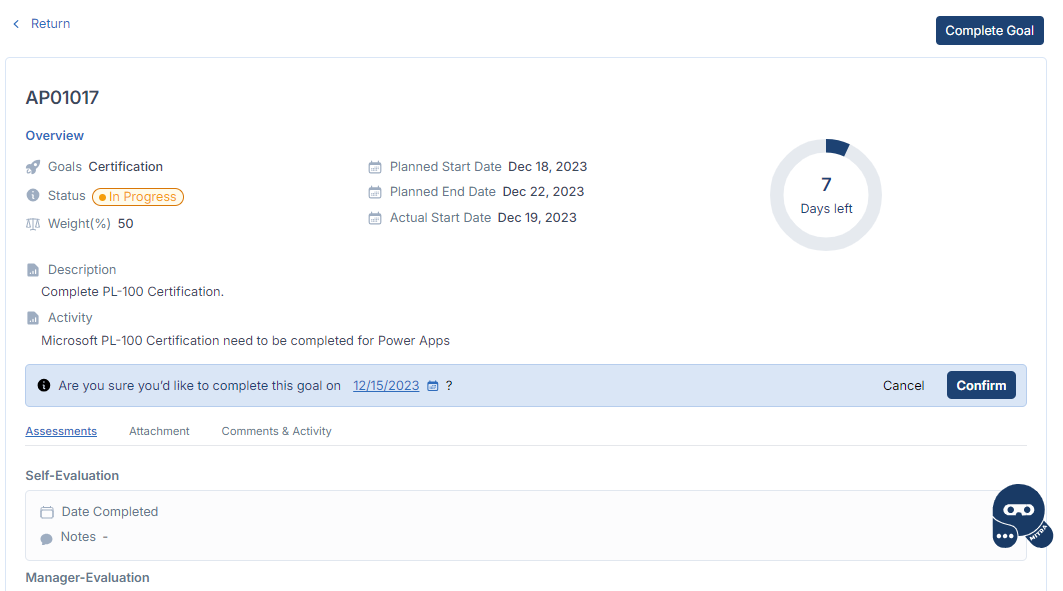
Once the goal is done, click on "Complete Goal". Confirm the actual completion date of the goal. It is editable.
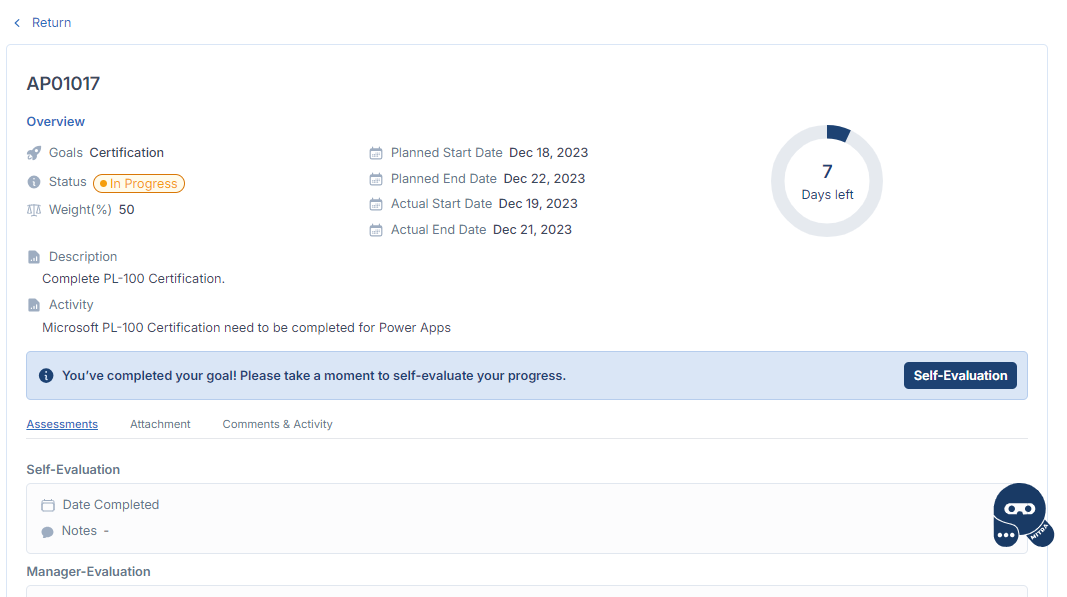
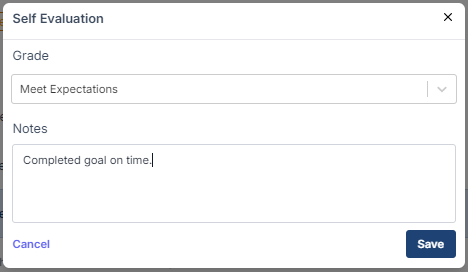
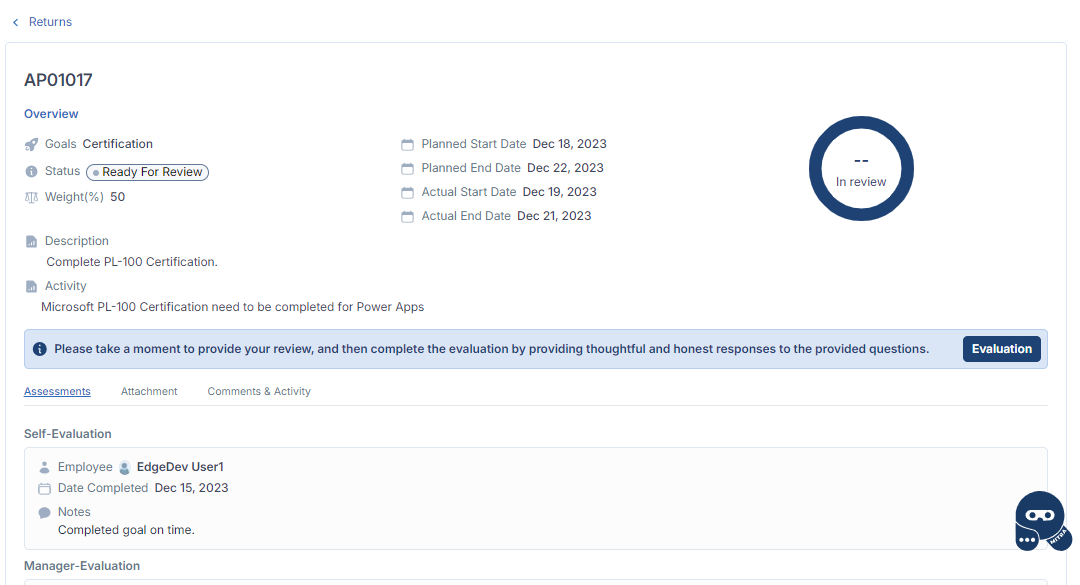
Provide Self-Evaluation for the goal assessment. The goal status would change to "Ready For Review" and would be pending for assessment by Manager.
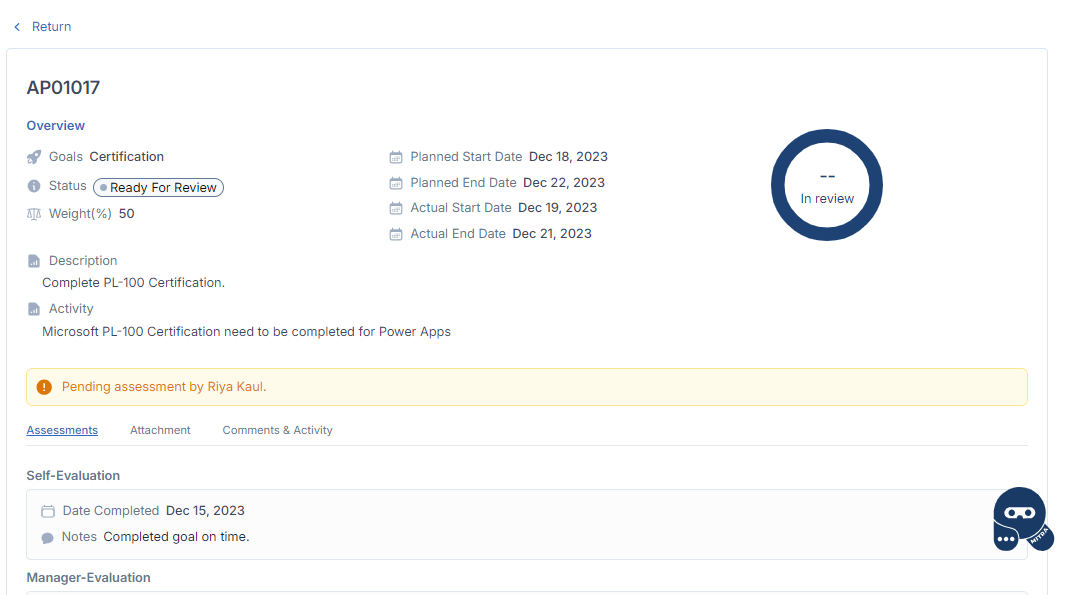
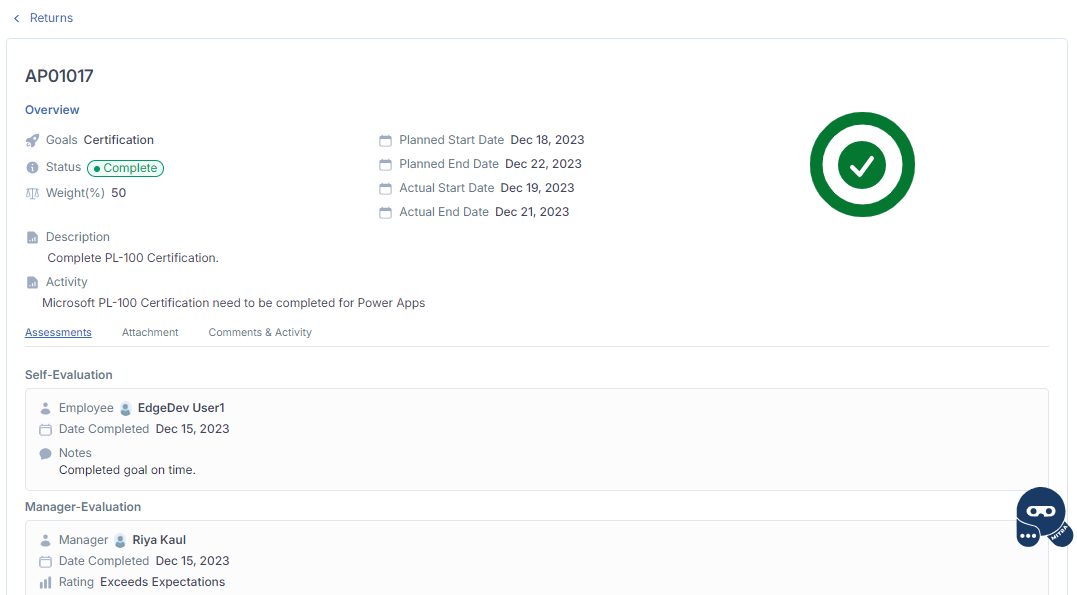
The Manager need to assess the Employee Performance for the goals and provide the evaluation. Navigate to Management > Performance page and open the goal to be reviewed. After providing the evaluation, the goal would be Complete.
Appraisal Completion Process
Once the goals are completed, the Employee can begin the Self-Evaluation on the Overall Appraisal Performance
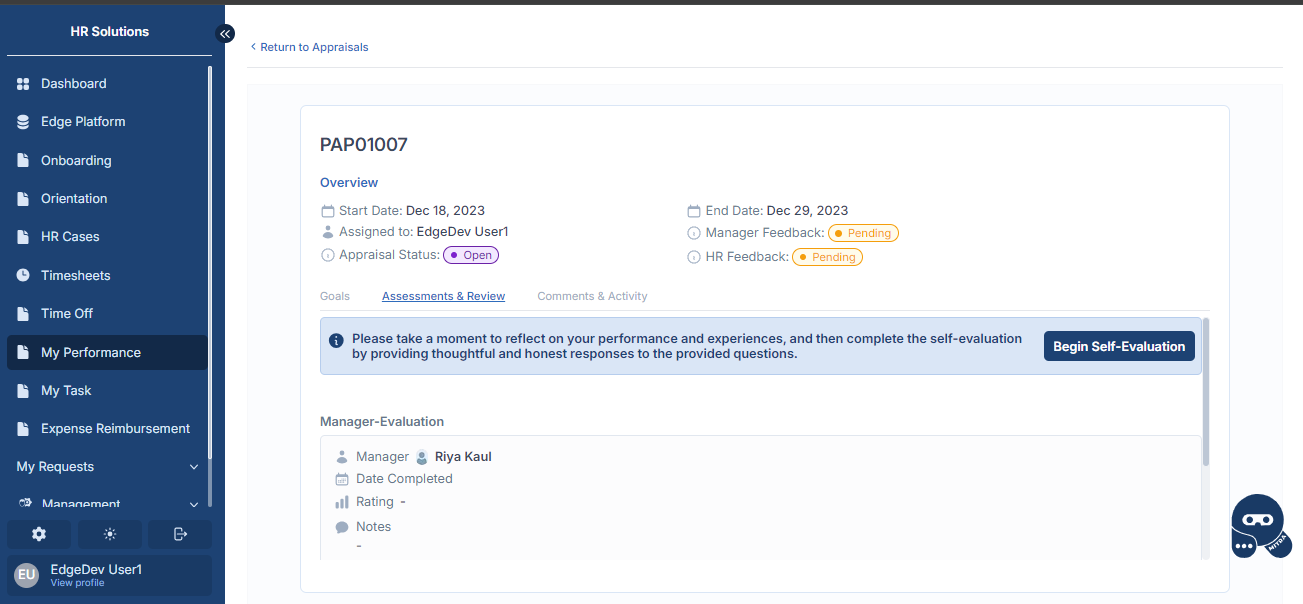
Employee need to navigate to My Performance section and open the Overall Appraisal Performance record. Click on "Begin Self-Evaluation" to provide the assessment.
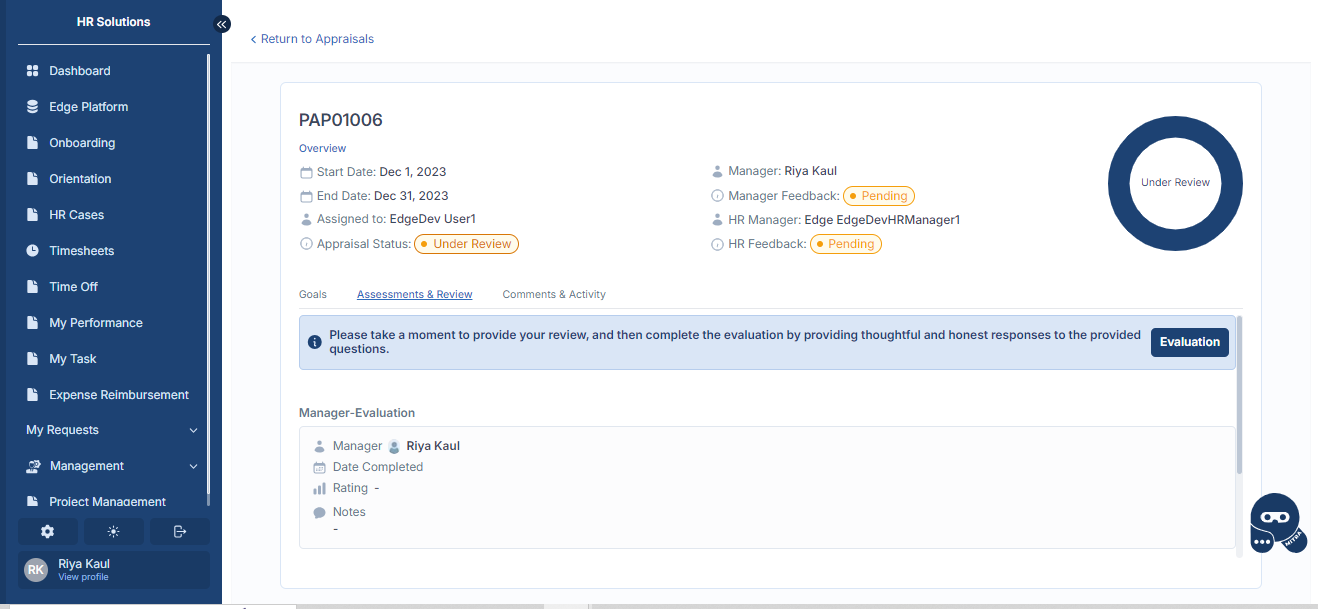
On submitting the self evaluation, the Appraisal Status would be updated to "Under Review". The Manager would need to provide the assessment on the overall Appraisal Performance.
On submitting the evaluation, the Employee need to review the Manager's Evaluation and provide his response whether they agree/disagree with it.
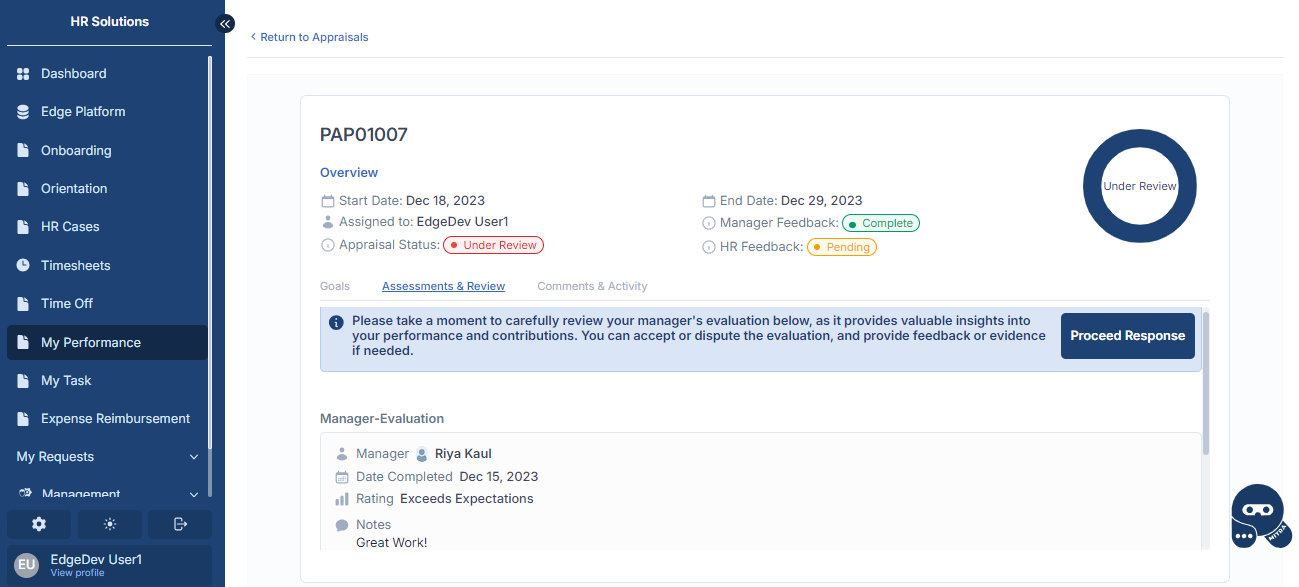
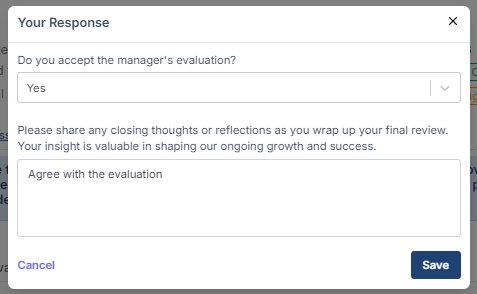
If they agree on it, the process would move further and the HR Manager has to provide the final assessment on the Overall Performance Appraisal of the Employee in order to complete the process. To do so HR Manager need to navigate to Management > Performance page and open the Performance Appraisal Record to be reviewed.
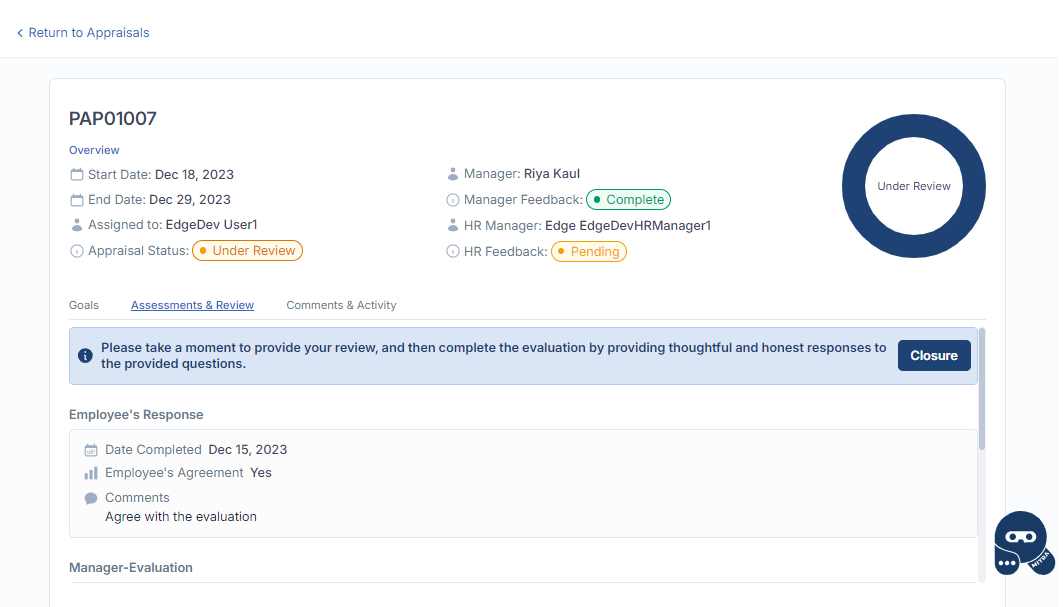
Click on "Closure" button to complete the Appraisal Process after providing the evaluation.
If the Employee disagree on the Manager's Evaluation, the Manager would need to review and agree/disagree with the Employee's response.
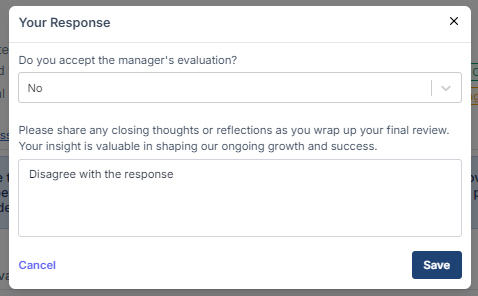
To do so Manager need to navigate to Management > Performance page and open the Performance Appraisal Record to be reviewed.
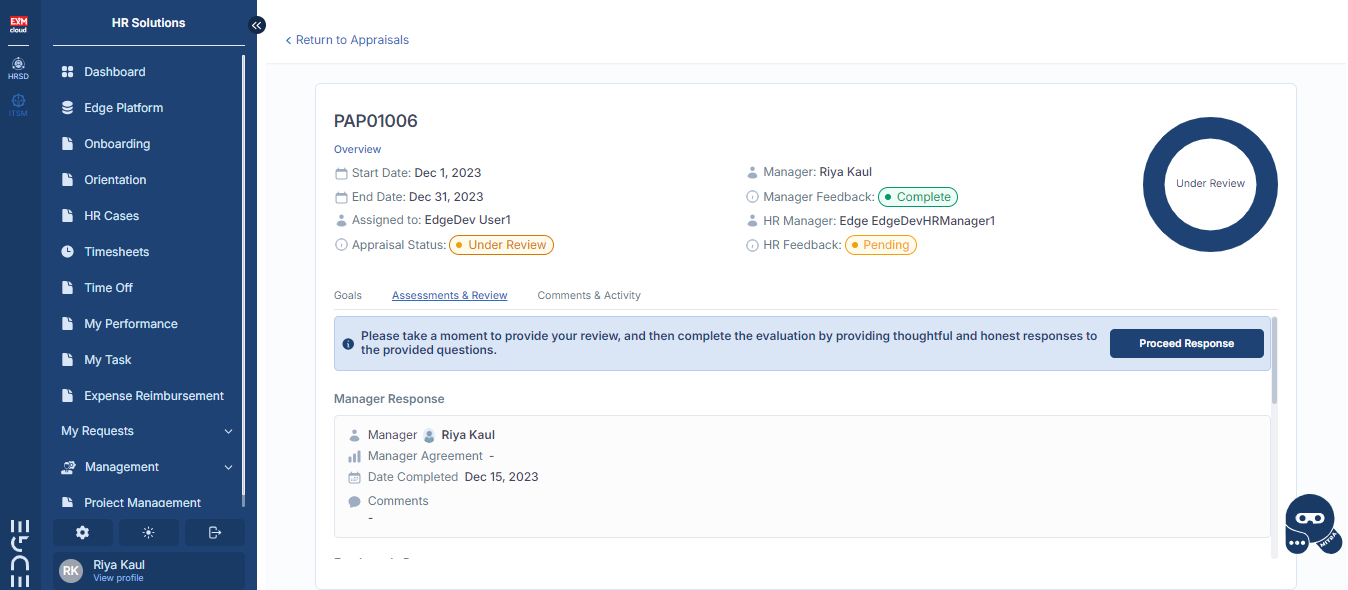
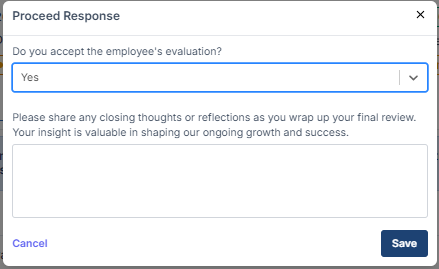
If the Manager accepts or does not accepts the Employee's response, the process would move further and the HR Manager has to provide the final assessment on the Overall Performance Appraisal of the Employee in order to complete the process.